
If you are searching for “best Cursor alternatives in 2026”, you are probably facing one simple problem:
👉 Cursor is powerful, but it is no longer the only option
👉 AI coding tools are evolving too fast to rely on just one IDE
👉 Developers are confused about what actually works in real projects
And honestly, most blogs on the internet don’t help.
They either:
- Just list tools without depth
- Copy marketing content
- Or write “surface-level comparisons” that don’t reflect real usage
So this article is different.
Here, you will not just see names of tools.
You will understand:
✔ How each tool actually behaves in real development
✔ Where it performs well and where it fails
✔ Which tool fits your workflow (not just popularity)
This is written in a simple, human, developer-style explanation, so you can actually use it — not just read it.
Table of Contents
How These Tools Were Selected
This list is not random. Every tool is included based on real evaluation criteria used by developers in 2026:
✔ 1. Real Developer Usage
We considered tools that are actually used in production or serious coding workflows — not hype tools.
✔ 2. AI Capability Depth
We focused on:
- Multi-file understanding
- Code reasoning ability
- Agent-based automation
✔ 3. Workflow Integration
A tool is only useful if it fits into real environments like:
- VS Code ecosystem
- Terminal workflows
- Full IDE experience
✔ 4. Performance + Stability
We avoided tools that are:
- Too experimental
- Unstable in large projects
- Or inconsistent in output quality
✔ 5. Developer Experience (Most Important)
We prioritized:
- Speed
- Simplicity
- Control
- Learning curve
Because in real development, comfort = productivity
2026 Best Cursor Alternatives Matrix (Quick Overview)
This table gives you a high-level snapshot before we go deep into each tool:
| Tool | Type | Best Strength | Ideal User |
|---|---|---|---|
| Windsurf | AI IDE | Cursor-like workflow | Full-stack devs |
| GitHub Copilot | AI Assistant | Stability & trust | Professional teams |
| Cline | AI Agent | Automation power | Advanced users |
| Void Editor | Open-source IDE | Privacy control | Security-focused devs |
| Zed Editor | Code Editor | Ultra speed | Performance lovers |
| Trae AI | AI IDE | Balanced simplicity | Beginners + intermediates |
| Claude Code | Terminal AI | Deep reasoning | Backend engineers |
| Continue.dev | AI Framework | Full customization | Advanced developers |
| Aider | Git-based AI | Repo-level control | Git-heavy workflows |
Best Cursor Alternatives
Windsurf
Overview

Windsurf is one of the most advanced AI-first coding environments in 2026 and is widely considered the closest real alternative to Cursor in terms of how it changes the actual development workflow. Unlike traditional IDE plugins that only assist with suggestions or autocomplete, Windsurf is designed around a full “AI-native coding flow,” where the tool understands your project as a connected system rather than separate files.
This means when you are working on a real application — for example a React frontend with a Node.js backend — Windsurf does not just generate code in isolation. It tries to understand relationships between components, APIs, and shared logic. This is where it becomes powerful for full-stack developers who often struggle with keeping multi-file consistency.
One of its strongest concepts is “flow-based development.” Instead of writing every line manually, you describe what you want to build, and Windsurf translates that into structured changes across multiple files. This reduces repetitive coding and speeds up prototyping significantly.
However, it is important to understand its limitations as well. Windsurf is still evolving in its plugin ecosystem, and it does not yet match VS Code in terms of extension maturity or debugging depth. This makes it slightly less flexible for developers who rely heavily on custom tooling.
Key Features
- AI-native IDE designed for full project understanding
- Multi-file code generation and updates
- Flow-based development system
- Context-aware project reasoning
- Clean modern interface focused on productivity
Pros
- Very strong multi-file understanding
- Reduces repetitive coding work
- Fast prototyping for full-stack apps
- Intuitive AI-driven workflow
Cons
- Limited extension ecosystem compared to VS Code
- Still evolving in advanced debugging tools
- Not ideal for highly customized setups
Who Should Use It
Windsurf is Best Cursor Alternatives who want a Cursor-like experience but with more structured AI control. It is especially useful for full-stack developers, startup engineers, and anyone building rapid prototypes where speed and coordination matter more than deep customization.
Experience Insight
When used on a real React + Node.js project, Windsurf showed strong ability to maintain consistency across components. It reduced manual syncing work between frontend and backend files, making development noticeably faster and more organized.
GitHub Copilot + VS Code
Overview
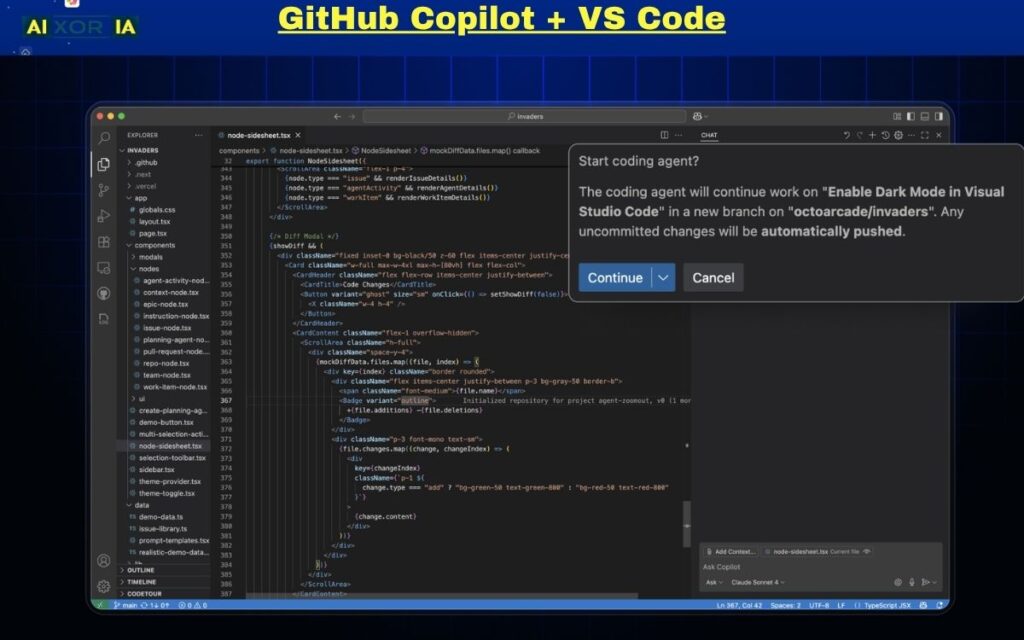
GitHub Copilot combined with VS Code remains one of the most stable, widely adopted, and production-trusted AI coding setups in 2026. Unlike newer AI IDEs that focus on full automation or agent-based workflows, this combination focuses on reliability, predictability, and deep integration with real-world development environments.
The biggest strength of this setup is that it does not try to replace your IDE. Instead, it enhances what developers already use daily. VS Code acts as the core development environment, while Copilot works as an intelligent assistant that understands context and suggests code in real time.
In practical development, this means you are still fully in control of your workflow. Copilot does not restructure your project or take over file-level decisions. Instead, it helps you write functions faster, reduce repetitive boilerplate code, and improve coding speed without changing your development style.
This makes it extremely valuable for professional developers working in teams, where stability and predictability are more important than experimental AI behavior. Enterprises also prefer this stack because it is well-tested, secure, and integrated into existing workflows.
However, compared to modern AI IDEs like Windsurf or Cline, Copilot lacks deep autonomous reasoning. It does not independently manage multi-file logic or complex task execution, which limits its role to an assistant rather than a full coding agent.
Key Features
- Real-time AI code suggestions inside VS Code
- Strong language and framework support
- Deep integration with GitHub ecosystem
- Fast inline completions
- Works across multiple programming languages
Pros
- Extremely stable and production-ready
- Easy learning curve for all developers
- Strong enterprise adoption and trust
- Works smoothly with existing workflows
- Low disruption to developer control
Cons
- No full AI agent capabilities
- Limited multi-file autonomous editing
- Less advanced than AI-native IDEs
- Mostly suggestion-based, not workflow-driven
Who Should Use It
GitHub Copilot + VS Code is ideal for professional Cursor Alternatives, backend engineers, and enterprise teams who prioritize stability over experimentation. It is also perfect for developers who already have a strong VS Code workflow and do not want to switch environments.
Experience Insight
In real development workflows, Copilot feels like a silent assistant that enhances speed without interfering with control. While writing APIs or backend logic, it significantly reduces boilerplate work, but still keeps the developer fully responsible for architecture and decision-making.
Cline
Overview
Cline is one of the most powerful AI agent-based coding Best Cursor Alternatives Available in 2026, and it represents a clear shift from “AI autocomplete” toward “AI execution systems.” Unlike traditional assistants that only suggest code, Cline is designed to perform multi-step development tasks inside your project with minimal supervision.
The most important concept behind Cline is autonomy. Instead of asking the AI to generate a single function or file, you can give it a high-level instruction such as building a feature, fixing a bug, or refactoring a module. Cline then breaks this task into smaller steps, plans execution, and applies changes across the codebase.
This makes it extremely useful for developers working on large-scale applications where manual coordination between files becomes time-consuming. It effectively acts like a junior developer who can understand instructions, plan execution, and implement changes across multiple files.
Another strong advantage of Cline is its flexibility with AI models. Developers can connect different LLMs, allowing them to balance cost, performance, and accuracy depending on the project requirement. This makes it more adaptable than fixed AI IDE systems.
However, the same autonomy that makes Cline powerful can also make it complex. Beginners may find it overwhelming because it requires trust in the agent to modify code automatically. Without proper understanding, it may feel less predictable than tools like Copilot.
Key Features
- AI agent-based task execution
- Multi-step coding automation
- Works inside VS Code
- Supports multiple AI models
- Project-wide code modifications
Pros
- Highly automated development workflow
- Strong at handling repetitive coding tasks
- Saves time in large projects
- Flexible model integration
- Good for feature-level development
Cons
- Steeper learning curve for beginners
- Less predictable than traditional tools
- Requires careful oversight in production code
- Can feel complex for small projects
Who Should Use It
Cline is best suited for advanced developers, automation-focused engineers, and full-stack developers who work on large projects. It is especially useful for those who want to delegate coding tasks instead of writing everything manually.
Experience Insight
In real-world usage, Cline behaves like an intelligent task executor that understands project requirements at a high level. When used for feature implementation, it can break down complex tasks into smaller coding steps and apply changes across files with minimal manual intervention, significantly improving productivity in large codebases.
Void Editor
Overview
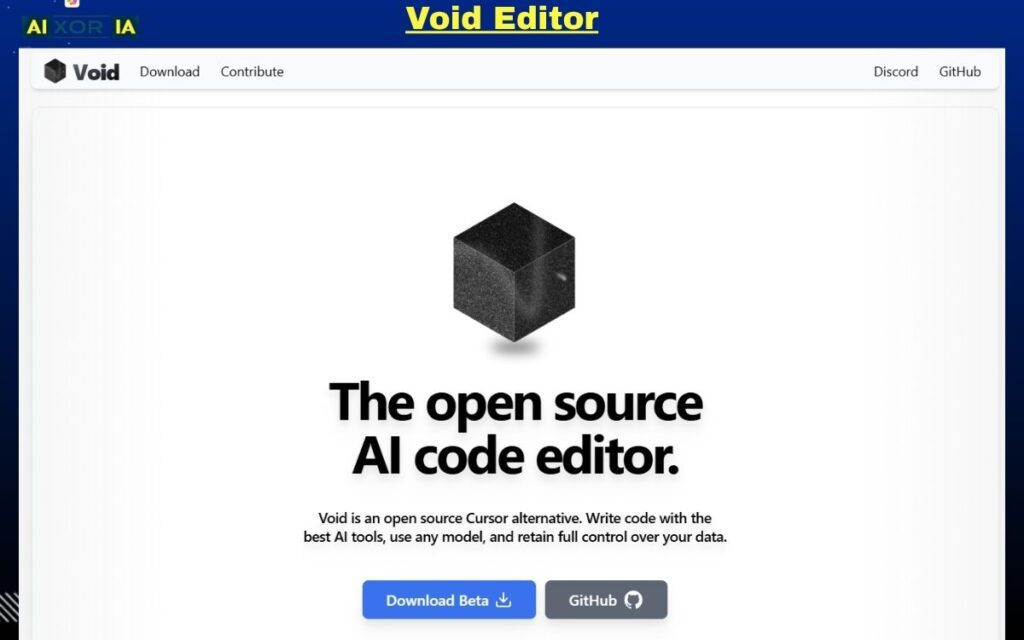
Void Editor is an open-source, privacy-focused AI coding environment built for developers who want full control over their development stack. Unlike commercial AI IDEs that depend heavily on cloud-based intelligence, Void is designed around transparency, customization, and local-first workflows.
The core idea behind Void is simple: the developer should own both the code and the intelligence layer. This means you can integrate local models, external APIs, or custom AI systems depending on your requirements. It is essentially a VS Code-like foundation, but rebuilt with a stronger emphasis on privacy and AI flexibility.
In real development scenarios, Void is particularly useful for engineers working on sensitive projects where code confidentiality matters. Since it supports local model execution, it reduces dependency on third-party cloud services, which is a major advantage for security-focused teams.
Another important aspect of Void is customization. Developers can modify how AI behaves, how it interacts with the codebase, and even how suggestions are generated. This level of control is rarely available in commercial AI IDEs.
However, Void is not a polished “plug-and-play” solution. It requires setup effort and technical understanding. Compared to tools like Copilot or Windsurf, it feels more raw and developer-oriented rather than beginner-friendly.
Key Features
- Open-source AI coding environment
- Local model support for offline usage
- High customization of AI behavior
- VS Code-based architecture
- Privacy-focused development workflow
Pros
- Full control over AI and environment
- Strong privacy and security benefits
- No dependency on cloud services
- Highly customizable for advanced users
- Open-source transparency
Cons
- Requires manual setup and configuration
- Less polished UI/UX compared to commercial tools
- Limited built-in AI features out of the box
- Not beginner-friendly
Who Should Use It
Void Editor is best Cursor Alternatives, security-focused engineers, and open-source enthusiasts who want full control over their coding environment. It is especially useful in enterprise or confidential development scenarios.
Experience Insight
In practical usage, Void feels like a highly flexible development framework rather than a finished product. When properly configured, it allows developers to build a completely personalized AI coding environment, but it requires time and technical understanding to unlock its full potential.
Zed Editor
Overview
Zed Editor is a next-generation code editor built with a strong focus on speed, responsiveness, and real-time collaboration. In 2026, it has become one of the most interesting alternatives for developers who feel that traditional IDEs like VS Code are becoming too heavy for large-scale projects.
Unlike AI-first IDEs such as Windsurf or Cline, Zed does not try to completely replace your development workflow. Instead, it focuses on delivering an extremely fast and distraction-free coding environment where performance is the top priority. It is built in Rust, which allows it to achieve very low latency even in large codebases.
One of the most impressive aspects of Zed is its real-time editing capability. Multiple developers can work on the same codebase simultaneously with near-instant synchronization. This makes it particularly powerful for team-based development environments where collaboration speed matters.
Zed also integrates AI features, but they are intentionally lightweight. The goal is not to overwhelm the developer with automation, but to assist with small improvements such as code suggestions, quick refactoring, and contextual help.
However, Zed is still evolving as an ecosystem. It does not yet have the massive extension library that VS Code offers, which limits its flexibility for developers who rely on specialized tools and plugins.
Key Features
- Extremely fast performance and low latency
- Built for real-time collaborative coding
- Lightweight AI assistance features
- Modern Rust-based architecture
- Clean and minimal interface
Pros
- Very fast and responsive even on large projects
- Excellent real-time collaboration support
- Clean and distraction-free coding experience
- Stable performance with minimal lag
- Modern architecture optimized for speed
Cons
- Limited extension ecosystem compared to VS Code
- Not fully AI-driven like newer IDEs
- Still developing advanced tooling support
- May feel minimal for power users
Who Should Use It
Zed Editor is ideal for developers who prioritize speed and collaboration over heavy AI automation. It works best for teams, startup environments, and developers handling large projects where performance is critical.
Experience Insight
In real-world usage, Zed feels extremely responsive compared to traditional IDEs. Large projects load quickly, file switching is instant, and the editing experience feels almost lag-free, making it one of the smoothest coding environments available in 2026.
Trae AI
Overview
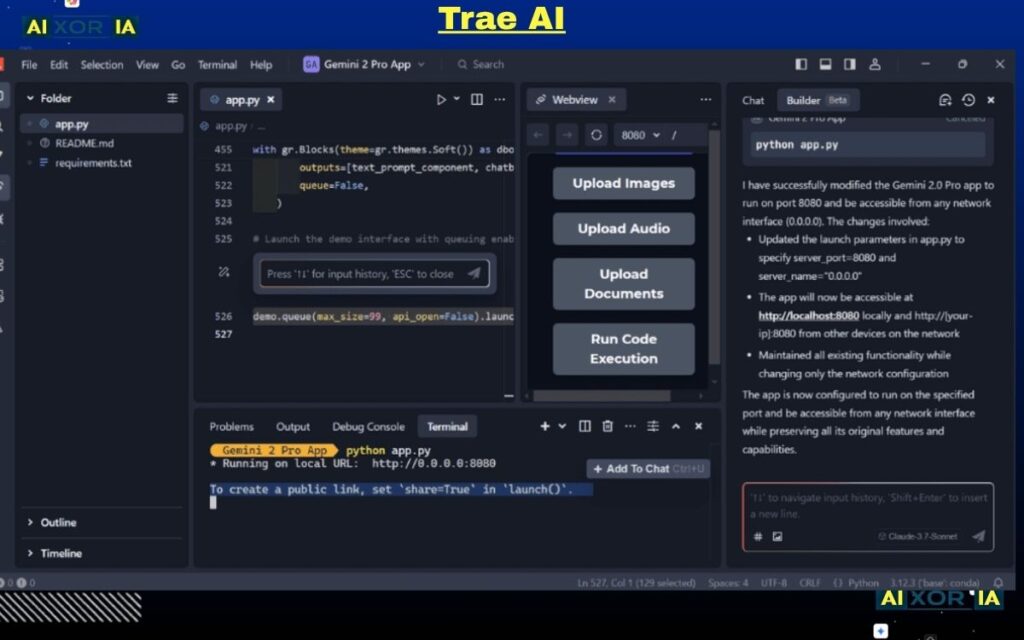
Trae AI is one of the fastest-growing Cursor Alternatives in 2026, and it is gaining attention because it sits in a very important middle space: it is not too complex like agent-heavy tools, and not too limited like basic AI autocomplete systems. It is designed to be a balanced AI IDE that focuses on simplicity, speed, and practical coding assistance.
Unlike older tools that either overwhelm users with automation or restrict them to simple suggestions, Trae AI focuses on a clean developer experience. It provides structured AI support that helps you write, debug, and understand code without taking full control of your workflow. This makes it especially attractive for developers who want AI help but still prefer manual control over their codebase.
In real-world usage, Trae AI performs well in everyday development tasks such as building APIs, creating frontend components, and debugging errors. It understands project context reasonably well and gives clean, readable outputs that are easy to integrate into actual projects.
One of its strongest advantages is accessibility. Beginners can start using it without a steep learning curve, while intermediate developers can still benefit from its structured AI assistance. It does not require complex configuration, which makes it more approachable compared to tools like Cline or Continue.dev.
However, Trae AI is still evolving in terms of ecosystem maturity. It does not yet match VS Code’s extension power or the deep automation capabilities of advanced AI agents. It is more of a balanced assistant than a fully autonomous system.
Key Features
- Simple AI-powered coding interface
- Context-aware code suggestions
- Built-in debugging assistance
- Lightweight and beginner-friendly design
- Balanced AI integration without over-automation
Pros
- Very easy to use for beginners
- Clean and distraction-free interface
- Good balance between AI help and manual control
- Fast setup and onboarding
- Suitable for daily development tasks
Cons
- Limited ecosystem and extensions
- Not as powerful as full AI agent tools
- Still developing advanced features
- Less suitable for complex automation workflows
Who Should Use It
Trae AI is best suited for beginner to intermediate developers who want a smooth AI coding experience without complexity. It is also useful for developers who prefer a clean and simple environment rather than heavy AI automation systems.
Experience Insight
In practical use, Trae AI feels like a calm and structured assistant that supports your coding without overwhelming you. It is especially effective for small to medium projects where clarity and speed matter more than deep automation or advanced orchestration.
Claude Code
Overview
Claude Code is a terminal-based AI development tool designed for developers who prefer working in command-line environments rather than graphical IDEs. In 2026, it stands out as one of the strongest reasoning-focused AI tools, especially for backend engineering, system design, and complex debugging tasks.
Unlike traditional IDE-based AI assistants, Claude Code does not depend on visual interfaces. Instead, it integrates directly into your terminal workflow. This makes it extremely powerful for developers who already work with Git, servers, and deployment pipelines on a daily basis.
The most important strength of Claude Code is its reasoning ability. It is not just generating code line by line; it can analyze entire project structures, understand dependencies, and suggest architectural improvements. This makes it particularly useful when working with large codebases where simple autocomplete tools fail to provide meaningful assistance.
Another strong aspect is its ability to handle multi-step logical tasks. You can describe a problem at a high level, and Claude Code can break it down into structured steps, debug issues, and suggest optimized solutions. This makes it feel less like a coding assistant and more like a technical architect working alongside you.
However, because it is terminal-based, it is not visually intuitive. Developers who rely heavily on GUI-based IDEs or visual debugging tools may find it less comfortable compared to tools like Windsurf or Copilot.
Key Features
- Terminal-based AI coding assistant
- Strong reasoning and problem-solving ability
- Deep codebase analysis and understanding
- Git and backend workflow integration
- Multi-step task execution through commands
Pros
- Excellent at complex debugging and logic tasks
- Strong architectural understanding of projects
- Lightweight and fast in terminal environments
- Ideal for backend and system-level development
- Works well with Git-based workflows
Cons
- No graphical interface (CLI only)
- Not beginner-friendly
- Requires comfort with terminal usage
- Limited visual development support
Who Should Use It
Claude Code is best suited for backend developers, DevOps engineers, and system architects who work extensively in terminal environments and need deep reasoning support rather than visual coding assistance.
Experience Insight
In real-world usage, Claude Code feels like a senior technical architect working inside your terminal. It is especially powerful when analyzing complex backend systems, identifying structural issues, and suggesting logical improvements that go beyond simple code generation
Continue.dev
Overview
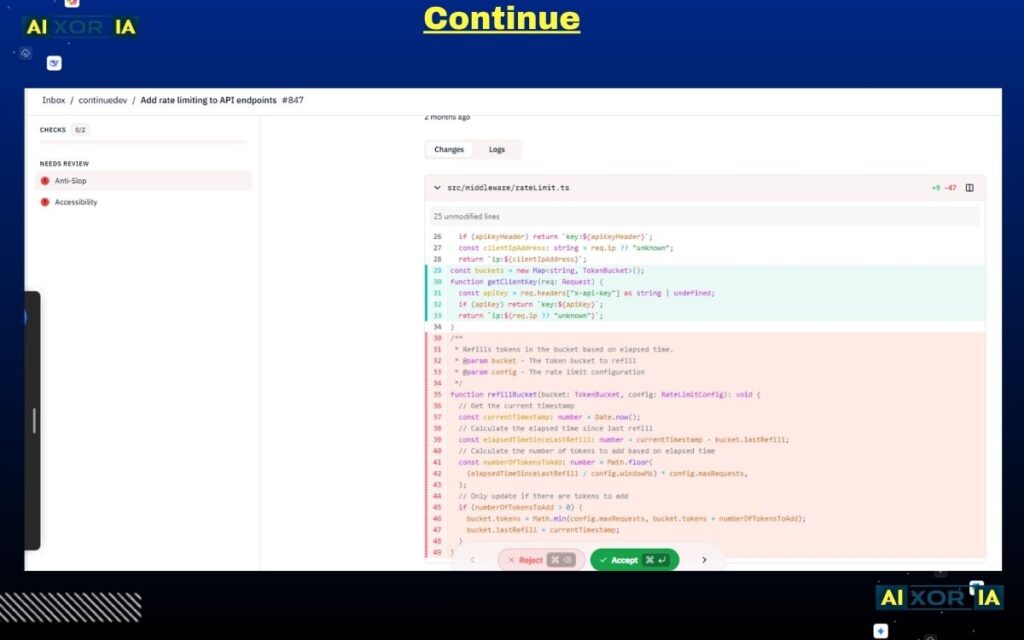
Continue.dev is not a traditional IDE or a standalone editor. Instead, it is a highly flexible AI coding framework that integrates directly into existing development environments like VS Code and JetBrains IDEs. In 2026, it has become popular among developers who want full control over how AI behaves inside their workflow.
The main idea behind Continue.dev is customization. Unlike tools that come with fixed AI behavior, Continue allows you to define how the AI should respond, which models it should use, and how it should interact with your codebase. This makes it more of a “build your own AI assistant” system rather than a ready-made product.
In practical development, Continue.dev is extremely useful for developers who want to experiment with different AI models or build personalized workflows. For example, you can configure it to use different models for different tasks such as debugging, code generation, or documentation writing. This level of flexibility is rare in most AI coding tools.
It also supports context-aware assistance, meaning it can understand your open files, project structure, and recent changes. However, its strength depends heavily on how well it is configured. Out of the box, it is not as polished as tools like Copilot or Windsurf, but when properly set up, it becomes extremely powerful.
The biggest challenge with Continue.dev is its learning curve. Developers need to understand model selection, prompt tuning, and workflow design to fully utilize it. Because of this, it is not ideal for beginners who want a simple plug-and-play solution.
Key Features
- Fully customizable AI coding framework
- Supports multiple AI models (OpenAI, Claude, local models)
- Deep integration with VS Code and JetBrains
- Context-aware code assistance
- Flexible prompt and workflow configuration
Pros
- Extremely flexible and customizable
- Works with multiple AI models
- No lock-in to a single provider
- Great for advanced AI experimentation
- Integrates into existing IDEs
Cons
- Requires setup and configuration knowledge
- Not beginner-friendly
- Lacks polished UI compared to full AI IDEs
- Depends on user-defined workflows
Who Should Use It
Continue.dev is ideal for Cursor Alternatives, AI engineers, and power users who want full control over their AI coding environment and are comfortable customizing workflows instead of using fixed solutions.
Experience Insight
In real-world usage, Continue.dev feels like building your own AI coding assistant from scratch. Once properly configured, it becomes extremely powerful and adapts perfectly to your workflow, but it requires time and technical understanding to reach that level of efficiency.
Aider
Overview
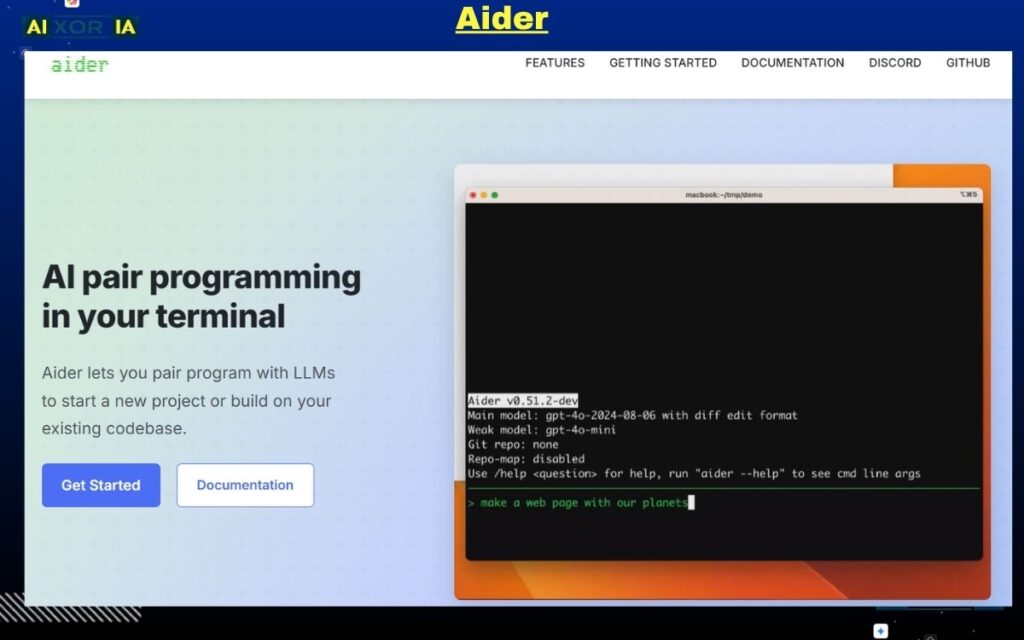
Aider is a terminal-based AI coding Cursor Alternatives that focuses on direct Git repository manipulation through natural language commands. In 2026, it has become especially popular among developers who work heavily with version control and prefer a structured, Git-centric workflow.
Unlike traditional AI IDEs that operate inside editors, Aider works directly on your project repository. You describe changes in natural language, and it applies those changes by creating or modifying files while maintaining proper Git history. This makes it extremely powerful for structured development environments where every change needs to be tracked carefully.
One of the key strengths of Aider is its precision in code editing. Instead of generating large uncontrolled changes, it focuses on incremental, reviewable modifications. This makes it highly suitable for production-level codebases where stability and traceability are critical.
Aider also integrates well with modern AI models, allowing developers to choose between different backends depending on performance and cost. It can handle tasks like feature implementation, bug fixing, refactoring, and even code migration across frameworks.
However, since it is terminal-based, it lacks visual context. Developers who prefer graphical IDEs may find it less intuitive at first. It also requires a strong understanding of Git workflows to fully benefit from its capabilities.
Key Features
- Git-based AI code editing system
- Natural language to code modifications
- Strong version control integration
- Multi-model AI support
- Incremental and safe code changes
Pros
- Excellent for structured Git workflows
- High precision in code modifications
- Keeps clean commit history
- Works well for production-level projects
- Lightweight and fast execution
Cons
- Requires strong Git knowledge
- No graphical interface
- Less beginner-friendly
- Limited visual debugging support
Who Should Use It
Aider is best suited for experienced developers AND BEST Cursor Alternatives, backend engineers, and teams working with strict version control workflows. It is especially useful in production environments where code safety and traceability are more important than visual convenience.
Experience Insight
In real-world usage, Aider feels like a disciplined assistant that respects project structure and version history. It is particularly effective when making controlled changes to large codebases, ensuring that every modification remains traceable and reviewable through Git.
What This Really Means in 2026
The AI coding landscape (Cursor Alternatives) in 2026 is no longer about “one best tool.” Instead, it has become a workflow-driven ecosystem, where each tool solves a different type of problem.
Some tools focus on speed.
Some focus on automation.
Some focus on privacy.
Some focus on control.
So the real decision is not “Which tool is best?”
The real decision is:
👉 “Which tool fits your coding behavior?”
If you choose based on hype, you will switch tools again and again.
If you choose based on workflow, you will stay productive for years.
Best Cursor Alternatives Based on Use Case
For All-Round AI IDE Experience
- WinCdsurf
- Trae AI
Best if you want a Cursor-like experience but with modern improvements in flow and usability.
For Stability and Professional Work
- GitHub Copilot + VS Code
Best for enterprise developers who want reliability over experimentation.
For Automation and AI Agents
- Cline
- Aider
Best for developers who want AI to execute tasks instead of just suggesting code.
For Privacy and Control
- Void Editor
Best for developers who want local-first or offline AI workflows.
For Speed and Performance
- Zed Editor
Best for developers who prioritize ultra-fast coding experience.
For Deep Reasoning and Backend Systems
- Claude Code
Best for system design, debugging, and backend-heavy architecture work.
For Custom AI Workflows
- Continue.dev
Best for developers who want to build their own AI coding system.
FAQ
Is Cursor still the best AI coding tool in 2026?
Cursor is still powerful, but many alternatives now match or exceed it in specific areas like speed, automation, and customization.
Which is the best free Cursor alternative?
Cline and Trae AI are currently the strongest free options depending on your workflow needs.
Which AI tool is best for beginners?
Trae AI and GitHub Copilot are the easiest to start with because they require minimal setup and learning curve.
Which tool is best for large projects?
Windsurf, Cline, and Aider perform best in large codebases due to multi-file and structured workflow support.
Do AI coding tools replace developers?
No. They increase speed and efficiency, but human understanding of logic, architecture, and debugging is still essential.
Final Conclusion
Best Cursor Alternatives in 2026 are not about replacing developers — they are about amplifying developer capability.
The biggest shift is this:
👉 Developers are moving from “writing code line by line”
👉 To “designing logic and guiding AI systems”
If you understand this shift, you will not just choose a tool — you will build a faster, smarter, and more efficient development workflow.
Cursor started the revolution.
But now the ecosystem is bigger, smarter, and more specialized than ever.