Why Choosing the Best Rated Computer Backup Programs Could Save Everything You Own

The best rated computer backup programs in 2026 are more important than ever — because losing your data isn’t a question of if, it’s a question of when.
Think about it: a hard drive crash, a ransomware attack, a house fire. Any one of these can wipe out years of files, photos, and work in seconds. And most people aren’t protected.
Here’s a quick look at the top-rated options right now:
| Program | Best For | Starting Price |
|---|---|---|
| EaseUS Todo Backup | Most home users | $39.95 one-time |
| Acronis True Image | Cyber protection + backup | ~$24.99/year |
| Macrium Reflect | Disk cloning & fast recovery | Free tier available |
| AOMEI Backupper | Budget-friendly & free | Free tier available |
| Retrospect Backup | SMBs & multi-platform | Paid plans |
| Arq Backup | Privacy & cloud flexibility | Paid, 30-day trial |
This guide covers all six in detail — features, pricing, and who each one is best for.
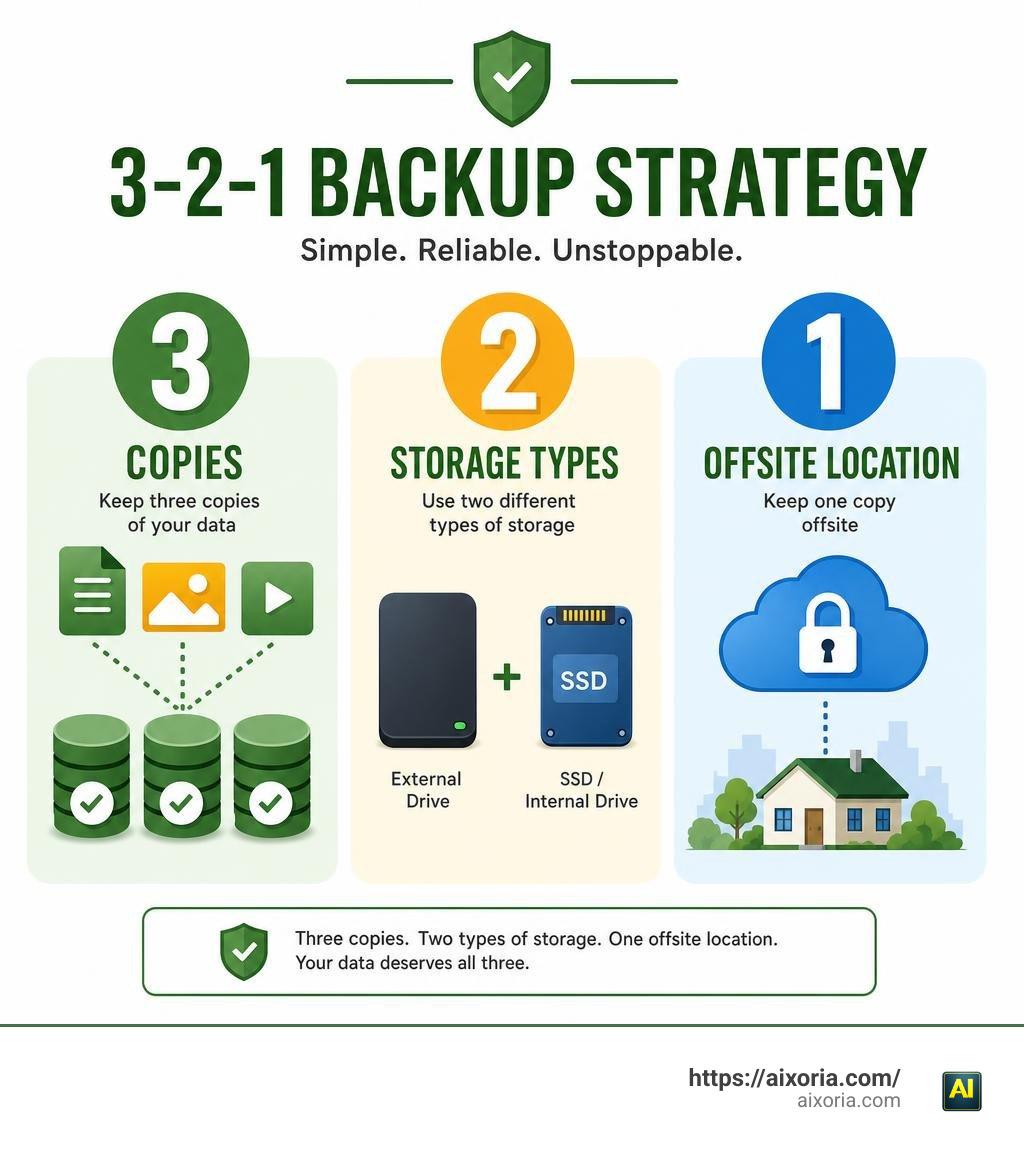
The core principle behind all good backup strategies is simple: the 3-2-1 rule. Keep three copies of your data, on two different types of storage, with one copy stored offsite. It sounds like overkill until you actually need it.
Modern backup software makes this easier than ever. Many programs now let you combine local and cloud backups in a single setup — so you get the speed of local recovery with the safety of offsite storage.
Key Features to Look For in the Best Rated Computer Backup Programs
When we are shopping for the best rated computer backup programs, it is easy to get lost in a sea of technical jargon. However, finding the right software does not require a computer science degree. We just need to focus on a few non-negotiable features that separate the lifesavers from the headaches.

- Full Disk Imaging vs. File-Level Backup: A great backup program should offer both. File-level backup lets us cherry-pick specific folders (like our photos or tax documents). Disk imaging, on the other hand, takes a snapshot of our entire hard drive. If our computer completely dies, a disk image lets us restore the entire operating system, settings, programs, and files onto a new drive in one go.
- Smart Versioning and Scheduling: We do not want to manually click “backup” every day. The best programs let us schedule automatic runs during our downtime. Furthermore, versioning keeps older copies of our files. If we accidentally save over an important document today, versioning allows us to roll back the clock and retrieve yesterday’s version.
- Strong Encryption: Security is paramount. Look for software that offers military-grade AES-256 encryption. This ensures that even if our backup files are stolen or intercepted, nobody can read them without our password.
- Bootable Recovery Media: If Windows refuses to boot, standard software cannot run. We need a program that helps us create a bootable USB drive or CD. This recovery media acts as a skeleton key, allowing us to boot our computer and restore our system even when the operating system is completely corrupted.
- Ransomware Protection and Immutable Backups: Modern cyber threats do not just target our live systems; they go after our backups too. The best rated computer backup programs include active protection features that block suspicious file modifications. Some even support immutable backups, which are read-only copies that cannot be deleted or altered by ransomware for a set period.
Just as we rely on the Best Ai Tools For Data Integration In 2026 to keep our business pipelines clean and secure, we must use robust backup software to keep our underlying computer environments safe from external threats.
Local Backup Software vs. Cloud Backup Services
One of the most common debates we encounter is whether to use local backup software or cloud-based backup services. The short answer? We shouldn’t choose just one. The best strategy is a hybrid approach that utilizes both.
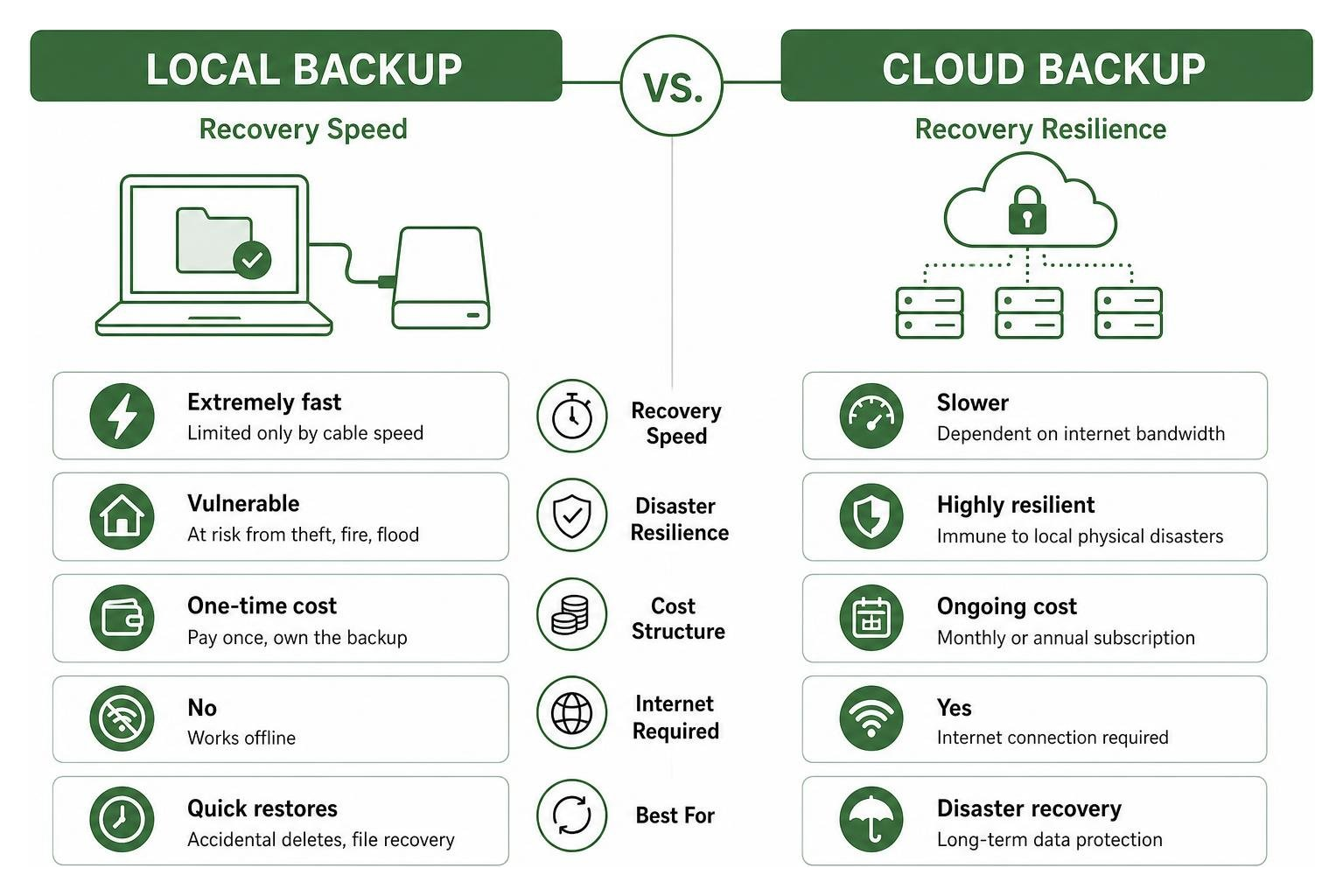
To understand why, let’s look at how they compare across key categories:
| Feature | Local Backup Software | Cloud Backup Services |
|---|---|---|
| Storage Location | External hard drives, SSDs, NAS | Remote secure data centers |
| Backup & Restore Speed | Extremely fast (limited only by cable speed) | Slower (dependent on internet bandwidth) |
| Disaster Resilience | Vulnerable to physical theft, fire, or flood | Immune to local physical disasters |
| Cost Structure | Typically a one-time license fee | Ongoing monthly or annual subscription |
| Internet Required | No | Yes |
Local backups are fantastic for quick recovery. If we accidentally delete a file, we can restore it from an external SSD in seconds. However, if a physical disaster strikes our home or office, both our computer and our local backup drive could be lost.
This is where cloud backups shine. By sending copies of our data to remote servers, we ensure our files survive physical mishaps. However, downloading several terabytes of data over an internet connection during a full recovery can take days.
Using a hybrid approach gives us the best of both worlds. We can use local software to create rapid daily backups to a local drive, while simultaneously running a cloud backup for disaster recovery. If you are managing large projects and need to generate regular reports on your data safety, using the Best Ai Tools For Project Reports can help you keep track of your backup compliance and system health.
Top-Rated Computer Backup Programs Reviewed
Now that we know what features to look for and how to structure our strategy, let’s dive into the best rated computer backup programs available in 2026. We have analyzed these programs based on their features, pricing models, ease of use, and overall reliability.
EaseUS Todo Backup: Best Rated Computer Backup Programs for Most Users
With over 4 million users worldwide and a consistent 5-star user rating, EaseUS Todo Backup remains our top recommendation for everyday PC users. It strikes a near-perfect balance between advanced features and an incredibly polished, user-friendly interface.
- Key Features: It excels at both full disk imaging and file-level backups. It also includes partition cloning, system migration tools, and a “Universal Restore” feature that lets us restore our system image to entirely different hardware without compatibility issues.
- Pricing: EaseUS stands out by still offering a perpetual license option alongside its subscription plans. You can secure their Home edition with a one-time purchase of $39.95, making it highly budget-friendly over the long run.
- Why We Love It: It makes complex tasks incredibly simple. With a clean design and one-click backup options, even beginners can set up a secure backup routine in minutes.
Learn more about their offerings at EaseUS Todo Backup – Data Backup and Recovery Software for PC/Server/Mac .
Acronis True Image: Best Rated Computer Backup Programs with Cyber Protection
For those who want an all-in-one security and backup suite, Acronis True Image is the undisputed heavyweight. Trusted by over 5.5 million users worldwide, it does much more than copy files — it actively defends them.
- Key Features: Acronis integrates full-image backups with a comprehensive cyber protection suite. This includes real-time antivirus, an active ransomware guard (which prevented over 100,000 attacks last year alone), identity protection, and a cryptojacking blocker. It also allows us to back up Microsoft 365 mailboxes and OneDrive data directly to the Acronis Cloud.
- Pricing: Acronis operates primarily on a subscription model, with plans starting around $24.99/year (often discounted) which includes 250GB of cloud storage.
- Why We Love It: It is incredibly robust. If you want peace of mind knowing your backup software is actively fighting off malware while keeping your system images safe, Acronis is the premier choice.
Check out their complete personal security suite at Easy & Reliable personal backup software for home and office .
Macrium Reflect: Best for Disk Cloning and Rapid Recovery
If your primary goal is disk cloning, drive migration, or lightning-fast system restores, Macrium Reflect is the gold standard. It is trusted by over 10 million users worldwide and boasts an impressive 4.8/5 rating from more than 10,000 reviews.
- Key Features: Macrium is famous for its Rapid Delta Restore (RDR) technology, which allows it to recover systems in a fraction of the time of traditional software by only restoring the blocks that have changed. It also features Image Guardian, which protects backup files at the kernel level from unauthorized modification by ransomware.
- Pricing: Macrium offers a highly functional free tier for basic imaging and cloning, while their premium personal licenses offer advanced scheduling and ransomware protection.
- Why We Love It: Its reliability is legendary. IT professionals consistently turn to Macrium because it produces bootable system images that work flawlessly when you need them most.
Explore their cloning and imaging solutions at Macrium Reflect — Backup and Disk Cloning Software .
AOMEI Backupper: Best Budget-Friendly and Free Windows Backup
For users who want reliable protection without spending a dime, AOMEI Backupper Standard is an outstanding choice. AOMEI has protected over 359PB of data in the last year and is trusted by 186 million users globally.
- Key Features: The free Standard edition includes system backup, disk backup, file sync, and partition cloning. It also allows us to easily create WinPE or Linux bootable media for bare-metal recovery.
- Pricing: The basic version is completely free for personal use. Upgrading to the Professional edition unlocks advanced cloning features, command-line utility support, and faster backup speeds.
- Why We Love It: Unlike many free programs that feel stripped-down or pushy, AOMEI Backupper Standard provides a highly capable, ad-supported experience that covers all the essential backup needs.
Download their free or premium editions at #1 Easy Windows Backup, Cloning and Sync Software | AOMEI Backupper .
Retrospect Backup: Best for SMBs and Multi-Platform Environments
For small-to-medium businesses (SMBs) and power users managing multiple platforms, Retrospect Backup is a powerhouse. It is trusted by over 500,000 homes and businesses across 100 countries.
- Key Features: Retrospect offers deep cross-platform support (Windows, Mac, Linux, and virtual environments). Its standout feature in 2026 is its advanced anomaly detection, which compares backup sets to identify sudden, massive file changes that indicate a ransomware attack. It also supports flexible immutable retention periods and multi-factor authentication (MFA).
- Pricing: Designed for business environments, Retrospect is priced higher than standard consumer tools but offers unmatched centralized management and endpoint protection.
- Why We Love It: It is highly customizable. If you have a mixed network of Macs and PCs and need to manage backups from a single dashboard, Retrospect handles it with ease.
Discover their business-grade protection at Retrospect: Data Protection for Every Business .
Arq Backup: Best for Privacy and User-Controlled Cloud Storage
For the privacy-conscious crowd, Arq Backup offers a unique, transparent approach. Arq has been a stable, self-funded, and profitable owner-operated company since 2009, making it a highly trusted name in the industry.
- Key Features: Arq is a “bring-your-own-storage” backup program. Instead of forcing you to use their cloud, Arq lets you back up your files to your own accounts (like Google Drive, OneDrive, Dropbox, AWS, or Backblaze B2) or local NAS devices. It features client-side, zero-knowledge encryption, meaning only you hold the keys to your data. It also supports native APFS snapshots on macOS.
- Pricing: Arq 7 is available as a one-time purchase, while Arq Premium bundles the software with built-in cloud storage for a simple annual fee.
- Why We Love It: It prevents vendor lock-in. Your data is stored in an open, documented format, ensuring you can always access your files even if you stop using the software.
Take control of your data privacy at Cloud backup software for Mac and Windows : Arq .
Frequently Asked Questions about Computer Backup
Setting up a backup system often brings up a few practical questions. Let’s tackle some of the most common queries we hear from users looking to secure their setups.
Many of these questions touch on how we manage our digital workflows. If you are looking to streamline your entire digital life, check out the Best Ai Tools For Business Productivity to find tools that complement your backup and security routines.
What is the difference between cloud storage and true backup software?
This is a crucial distinction. Cloud storage services like Google Drive, Dropbox, and OneDrive are designed for synchronization and collaboration. If you delete a file on your computer, it is immediately deleted from your cloud folder as well. If ransomware encrypts your local files, those encrypted files will sync to the cloud, replacing your clean copies.
True backup software, on the other hand, creates immutable snapshots of your data at specific points in time. It keeps historical versions of your files. If a file is deleted or corrupted on your computer, your backup software retains older, uncorrupted versions that you can restore at any time.
How often should I schedule my computer backups?
The frequency of your backups depends entirely on how often your data changes.
- For most home users, a daily automatic backup scheduled during the night or during low-usage hours is perfect.
- For active professionals and businesses, continuous or real-time backup is recommended. This feature monitors specified folders and backs up changes the moment a file is saved, ensuring you never lose more than a few minutes of work.
Will running backup software slow down my computer’s performance?
Modern backup programs are designed to run quietly in the background without interrupting your workflow. They typically run during low-usage periods or when your system is idle. Furthermore, most high-quality backup programs offer throttling options, allowing you to limit how much CPU power or network bandwidth the software can use while you are actively working. On modern hardware, you will rarely notice any performance impact.
Conclusion
Securing our data with the best rated computer backup programs is one of the smartest investments we can make in our digital peace of mind. Whether you choose the user-friendly simplicity of EaseUS, the heavy-duty cyber security of Acronis, or the privacy-first model of Arq, the key is to start backing up today.
At Aixoria, we believe that robust data protection is the foundation of any successful digital strategy. Once your data is safely backed up and secure, you can freely explore advanced ways to leverage your information, such as using the Best Ai Productivity Tools For Enterprise In 2026 to drive efficiency.
Don’t wait for a hardware failure or a cyberattack to teach you the value of a solid backup. Choose your program, set up your 3-2-1 strategy, and rest easy knowing your digital life is safe. For more insights on optimizing your workflow with cutting-edge technology, read our guide on what is the best AI for productivity in 2026.