The Best Free Drawing Programs for PC in 2026

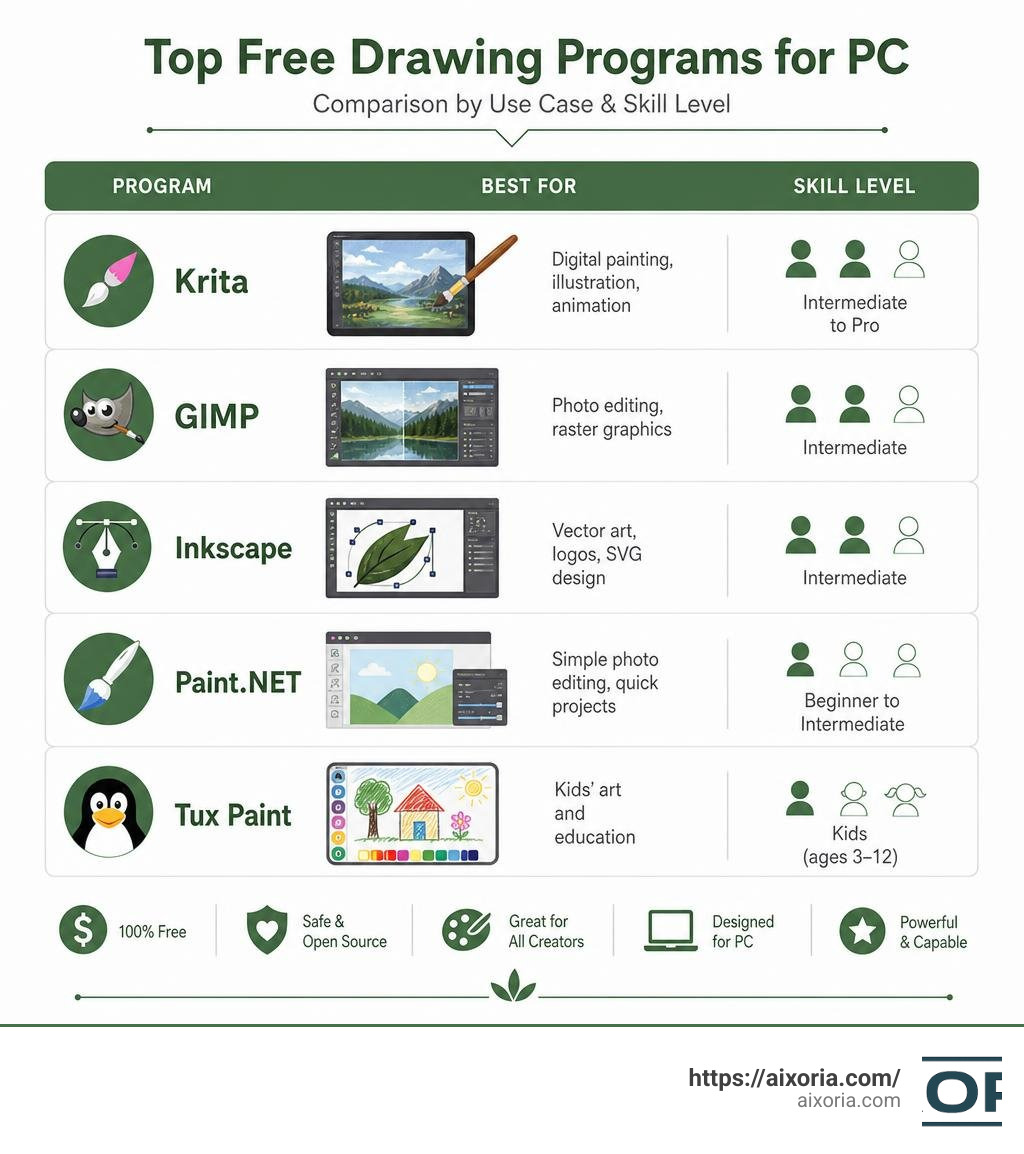
What is the best free drawing program for PC? The short answer depends on what you want to make — but here are the top picks:
| Program | Best For | Skill Level |
|---|---|---|
| Krita | Digital painting, illustration, animation | Intermediate to Pro |
| GIMP | Photo editing, raster graphics | Intermediate |
| Inkscape | Vector art, logos, SVG design | Intermediate |
| Paint.NET | Simple photo editing, quick projects | Beginner to Intermediate |
| Tux Paint | Kids’ art and education | Kids (ages 3–12) |
For most people who want to draw and paint digitally, Krita is the top recommendation. It’s completely free, open-source, and built by artists — with professional-level brush engines, layer support, and animation tools included.
Finding the right drawing software can feel overwhelming. There are dozens of options, and it’s hard to know which ones are actually good versus which are just free because they’re stripped down.
The good news? Some of the best drawing tools available today cost nothing at all. The explosion of free and open-source software has made it possible for hobbyists, students, and even professional artists to work at a high level without spending a cent.
This guide breaks down the best free drawing programs for PC — what each one does well, who it’s made for, and which one fits your goals.
Key Features to Look For in Free Drawing Software
Before you hit download on the first software you see, it helps to understand what makes a drawing program actually usable. Not all creative tools are built for the same tasks. A program that is perfect for editing photos might make you want to pull your hair out if you try to use it for freehand digital sketching.
When evaluating your options, keep these key technical components in mind:
- Layer Support: This is non-negotiable. Layers allow you to paint your background on one level, your line art on another, and your coloring on a third. If you make a mistake, you can fix it without ruining the entire piece.
- Brush Engines and Customization: A good drawing app needs more than a simple pen tool. Look for programs with adjustable brush sizes, opacity, flow, and texture blending.
- Pressure Sensitivity: If you are using a drawing tablet or stylus, your software must translate the physical pressure of your hand into thicker or thinner lines on the screen.
- Animation Tools: Some programs include timeline tools, allowing you to create frame-by-frame animations without switching to a different application.
- File Format Compatibility: Your software should import and export standard formats like PNG, JPEG, and PSD (Photoshop document), as well as vector formats like SVG.
If you are looking to expand your creative toolkit beyond digital drawing, check out our guide on the Best Free Graphic Design Software to see how these layout tools compare.
What is the best free drawing program for PC?
To find the absolute best software for your computer, we must look at how the leading options compare in performance, system requirements, and usability.
The table below breaks down the technical needs and primary strengths of the top free drawing programs available in 2026:
| Program | Main Use Case | Key System Requirements | Community Support | Usability Level |
|---|---|---|---|---|
| Krita | Digital Painting & Animation | 64-bit Windows, 4GB+ RAM, OpenGL 3.0 | Massive (Active Forums, Tutorials) | High (Slight learning curve) |
| Inkscape | Vector Illustration & Logos | Windows 10/11, Dual-core CPU | Excellent (Detailed Docs & Guides) | High (Requires learning vector tools) |
| GIMP | Photo Manipulation & Design | Windows 7+, 2GB+ RAM | Huge (Decades of tutorials & plugins) | Moderate (Intimidating UI) |
| Paint.NET | Quick Editing & Basic Drawing | Windows 10/11 (64-bit), AVX2, 4+ Cores | Great (Active forum with custom plugins) | Very Easy (Intuitive layout) |
| Tux Paint | Children’s Art & Education | Windows 7-11, highly lightweight | Good (School & educator resources) | Extremely Easy (Kid-friendly) |
Let’s dive deep into each of these programs to see which one deserves a spot on your desktop.
Krita: What is the best free drawing program for PC digital painting?
When it comes to pure digital painting and illustration, Krita is the undisputed champion of the free software world. Developed by a passionate global community of artists under the GNU General Public License, Krita is completely free, open-source, and will remain free forever.
What makes Krita stand out is its incredibly advanced brush engine. It offers multiple brush types, including ink pens, watercolor effects, chalk, and charcoal. If you struggle with shaky hands, Krita’s built-in brush stabilizers will smooth out your lines automatically.
Additionally, Krita features a full-fledged animation workspace. You can create traditional, frame-by-frame animations with onion-skinning (which lets you see the previous and next frames as faint ghosts while you draw).
The community surrounding Krita is exceptionally supportive. Because it is built for artists by artists, the official website hosts a wealth of resources, including custom brush packs, texture libraries, and plugins. If you want to experience professional-grade digital painting without a subscription, you can download it directly from the Krita | Digital Painting. Creative Freedom. homepage.
Inkscape: What is the best free drawing program for PC vector graphics?
If you want to design logos, icons, diagrams, or scalable illustrations, you need a vector graphics editor. Unlike raster editors (which use pixels that become blurry when zoomed in), vector programs use mathematical formulas to draw lines and shapes. This ensures your artwork remains perfectly crisp at any size.
For vector art, Inkscape is the absolute gold standard of free software. It is a highly capable alternative to expensive programs like Adobe Illustrator. Inkscape features flexible drawing tools, a powerful text tool, and support for Bezier and spiro curves, allowing you to create incredibly smooth paths.
With the release of version 1.4.4, Inkscape has significantly boosted its performance on Windows, crushing previous stability bugs and making the interface feel much snappier. It uses the standard SVG file format as its native save type, meaning your designs are instantly compatible with web browsers and modern design platforms.
To learn more about how vector design fits into modern branding workflows, or if you want to pair your vector skills with automated layout assistants, take a look at our review of the Best Ai Tools For Logo Design 2026 Real Brand Test Results. You can download this powerful vector engine for free from Inkscape – Draw Freely. | Inkscape.
GIMP: The Ultimate Photoshop Alternative
GIMP (GNU Image Manipulation Program) is one of the oldest and most famous open-source image editors in existence. While it is primarily known as a free alternative to Adobe Photoshop for photo editing, it is also a highly capable raster drawing program.
GIMP provides a vast array of tools for digital illustration, including customizable brushes, selection tools, path editing, and advanced color correction filters. Because it has been around for decades, it has a massive plugin ecosystem. If GIMP doesn’t have a feature you need out of the box, chances are someone in the community has written a free plugin to add it.
The primary drawback of GIMP is its learning curve. The user interface can feel cluttered and intimidating to beginners. However, once you customize the layout and learn the keyboard shortcuts, GIMP becomes an incredibly fast and powerful tool for both drawing and photo manipulation.
Paint.NET: Simple and Powerful Photo Editing
If GIMP feels too complicated, but you still need a program that handles layers and photo editing, Paint.NET is the perfect middle ground. Originally developed as an undergraduate college senior design project mentored by Microsoft, Paint.NET started as a free replacement for the basic Microsoft Paint program. Over the years, it has evolved into a robust, full-featured editor.
Paint.NET features an incredibly clean, intuitive interface. It supports layers, unlimited undo history, and a wide variety of special effects (like blurring, sharpening, and red-eye removal).
In its latest updates, Paint.NET has migrated to Microsoft .NET 9, making it incredibly fast. However, this means it has some specific system requirements. To run the latest versions, you will need a 64-bit Windows 10 or 11 operating system, a CPU that supports AVX2 instructions, and at least 4 cores.
If your computer meets these requirements, you can get the software directly from the Paint.NET – Download page. To explore its features further, visit the Paint.NET – Free Software for Digital Photo Editing portal.
Tux Paint: Fun and Educational Art for Kids
Digital art isn’t just for adults and professionals. If you are looking for a program to introduce young children to computer graphics, Tux Paint is an award-winning, open-source program designed specifically for kids ages 3 to 12.
Tux Paint features a simple, child-friendly interface with large, easy-to-read buttons. To make drawing more engaging, it includes fun sound effects and a cartoon penguin mascot named Tux who guides children along the way.
The program features over 90 “Magic” special effects tools, allowing kids to instantly paint rainbow patterns, draw realistic brick walls, or apply blur and mosaic effects. It also includes an extensive library of rubber stamps (which can play spoken words and sound effects when placed).
Teachers and parents will appreciate the robust parental controls, which allow you to run the program in a locked, full-screen mode to prevent children from accessing other files on your PC. You can read more about its educational features on the Features of Tux Paint page, and download the software for free from Tux Paint – Free art software for kids of all ages.
Free vs. Paid Drawing Software: Is It Worth Upgrading?
With so many incredible free drawing programs available, you might wonder why anyone pays for subscriptions to Adobe Photoshop, Clip Studio Paint, or Procreate.
Paid software still holds a few advantages, particularly in professional industry pipelines:
- Industry Standards: Most design agencies and animation studios expect artists to use Adobe Creative Cloud. Files saved in native formats sometimes lose formatting when transferred between different programs.
- Customer Support: Paid software comes with dedicated technical support teams, whereas free and open-source software relies on community forums to troubleshoot bugs.
- Specialized Workflows: Clip Studio Paint, for example, has specialized tools specifically for drawing manga and comics, such as panel-splitting tools and perspective rulers, that are highly optimized.
However, for freelance illustrators, hobbyists, and independent creators, the gap between free and paid software has virtually vanished. Krita, Inkscape, and GIMP are fully capable of producing professional, commercial-grade artwork.
If you want to stretch your creative wings even further into the third dimension, take a look at our guide to the Best 3D Modeling Software For Beginners to see how open-source 3D tools like Blender can complement your 2D illustration workflow.

Frequently Asked Questions about Free Drawing Software
What is the best free drawing software for beginners?
If you are brand new to digital art, we recommend starting with Sketchbook or FireAlpaca. Sketchbook offers an incredibly clean, distraction-free user interface that lets you focus on sketching without getting bogged down by hundreds of menus.
FireAlpaca is another excellent beginner option because it is lightweight, simple to use, and runs beautifully on older or lower-end computers. Once you get comfortable with layers and brush settings in these programs, you can easily transition to more advanced software like Krita.
Do free drawing programs support drawing tablets and pressure sensitivity?
Yes! Almost all modern free drawing programs (including Krita, GIMP, Inkscape, and Paint.NET) fully support drawing tablets from major brands like Wacom, Huion, and XP-Pen.
To ensure pressure sensitivity works correctly, make sure you install the latest drivers for your drawing tablet before opening your drawing software. You may also need to enable “Windows Ink” in your tablet’s settings panel for the software to recognize the pen pressure.
Can I use free drawing programs for professional work?
Absolutely. Because open-source software like Krita and Inkscape is released under free-to-use licenses (like the GNU GPL), you own 100% of the artwork you create.
There are no licensing fees, royalties, or restrictions on commercial use. You can use these programs to design merchandise, illustrate books, create logos for paying clients, or produce animations for commercial release.
Conclusion
At Aixoria, we believe that creative expression should not be locked behind expensive monthly subscriptions. Whether you are a professional illustrator looking to escape high software fees, a student building your first portfolio, or a parent introducing your child to the joy of digital art, there is a perfect free program waiting for you.
By pairing tools like Krita for digital painting, Inkscape for vector logos, and Paint.NET for quick photo edits, you can build a world-class creative suite on your PC without spending a single dollar.
Ready to take your digital creation skills to the next level? Explore our AI Tutorials to discover how the latest creative technology can assist your design and illustration workflow!