AI Is Everywhere on Google — Here’s How to Dial It Back

If you’re wondering how do I get Google to stop asking me to use AI, you’re not alone — and the short answer is: you can’t turn it all off, but you can reduce it significantly with a few targeted changes.
Here’s a quick overview of your main options:
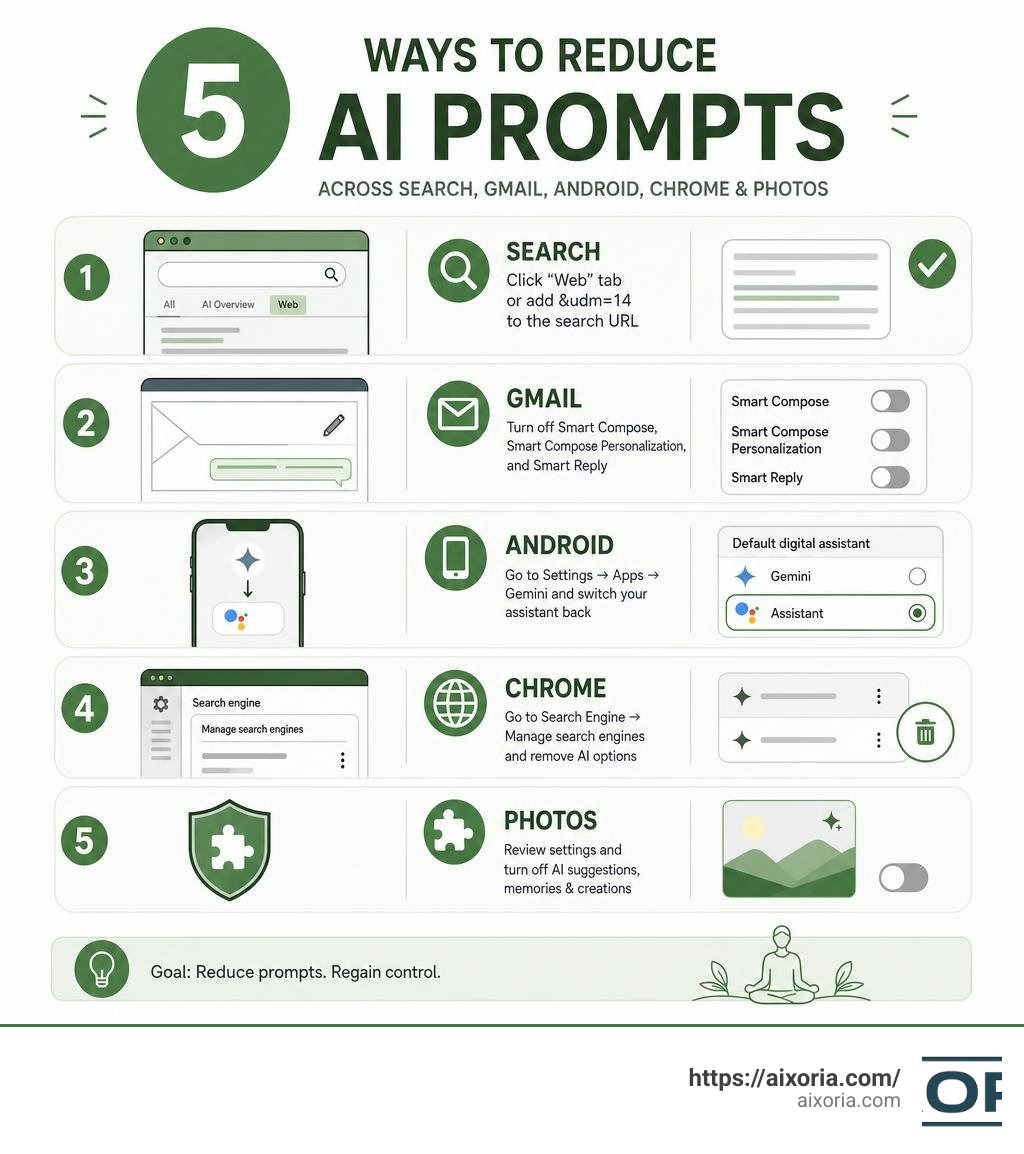
- Google Search AI Overviews — Click the “Web” tab after searching, or add
&udm=14to any Google search URL to get classic link results. - Gmail Smart Compose & Smart Reply — Go to Gmail Settings → See all settings → turn off Smart Compose, Smart Compose Personalization, and Smart Reply.
- Gemini on Android — Go to Settings → Apps → Gemini and switch your default assistant back to Google Assistant.
- Chrome AI features — Go to Chrome Settings → Search Engine → Manage search engines and remove Gemini-linked options.
- Browser extensions — Install extensions like “Bye Bye, Google AI” or “AiHide” from the Chrome Web Store to hide AI Overviews visually.
None of these is a single master switch. Google has woven AI into nearly every product it makes — Search, Gmail, Docs, Android, Photos, and Chrome. The goal is reduction, not total removal.
And it’s not just a niche frustration. A late 2025 Gartner study found that 41% of users report “search fatigue” from the growing complexity of AI-interstitial results. A February 2026 Ahrefs study found that pages appearing under AI Overviews see a 58% lower average click-through rate — meaning AI summaries are changing what users see and click, whether they want that or not.
Google has been clear: AI Overviews are a permanent part of Search. Gemini is replacing Google Assistant. Smart features are on by default. The burden of opting out falls entirely on the user.
This guide walks you through every layer — Search, Gmail, Android, Chrome, and beyond — so you can take back as much control as possible.
How Do I Get Google to Stop Asking Me to Use AI? The Core Problem
We have all been there. You open Google to search for a quick, straightforward fact, and instead of a neat list of direct links, you are met with a massive, slow-loading grey box labeled “AI Overview.” You open Gmail to quickly draft a note, and predictive text jumps ahead of your thoughts, trying to finish your sentences before you can even think them.
The core issue is that Google does not provide a single, universal “Turn Off AI” button. This is not an oversight; it is a deliberate design choice. Google has deeply integrated its Gemini AI models into the very architecture of its ecosystem. By doing so, they can keep users within their walled garden, serve highly targeted search experiences, and justify their multi-billion-dollar investments in generative technology.
While some users find these features helpful, others experience severe “search fatigue.” The constant visual clutter, slow rendering times, and occasional “hallucinations” (where the AI confidently provides false information) make the traditional, link-based web look incredibly appealing. If you want to boost your efficiency without these interruptions, you might want to look into the Best AI tools for productivity and time management to find tools that actually respect your workflow boundaries rather than forcing intrusive overlays onto your screen.
Bypassing AI Overviews in Google Search
Because Google has made AI Overviews a fundamental part of its search algorithm, you cannot simply go to your account settings and flip a switch to permanently disable them. However, you can employ several clever workarounds to bypass them entirely.
The table below outlines the three most effective methods to reclaim a traditional search layout:
| Method | How It Works | Pros | Cons |
|---|---|---|---|
| The “Web” Filter | A dedicated tab on the Google search results page that filters out AI, shopping blocks, and widget clutter. | Official, built-in, and requires zero installation. | Must be clicked manually after every single search query. |
| The udm=14 Parameter | A URL modifier that forces Google to load only classic, text-based search results. | Can be automated as a default search engine option. | Requires a one-time technical setup in browser settings. |
| Browser Extensions | Third-party tools that actively block and hide AI elements via custom style sheets. | Completely hands-free once installed; cleans up ads too. | May occasionally break when Google updates its code. |
How Do I Get Google to Stop Asking Me to Use AI? Bypassing Search Overviews
If you want a reliable, hands-free way to bypass AI Overviews without clicking the “Web” tab every single time, you can configure your browser to automatically apply the udm=14 parameter. This parameter instructs Google’s servers to return only classic, organic search results.
Here is how to set this up as your default search engine in Google Chrome:
- Click the three vertical dots in the top-right corner of Chrome and select Settings.
- On the left sidebar, click Search engine, then select Manage search engines and site search.
- Scroll down to the Site search section and click the Add button.
- Fill out the fields exactly as follows:
- Search engine: Classic Google (No AI)
- Shortcut: google.com
- URL with %s in place of query:
{google:baseURL}search?q=%s&udm=14
- Click Save.
- Find your newly created “Classic Google” engine in the list, click the three dots next to it, and select Make default.
Now, whenever you type a query into your Chrome address bar, Google will bypass the AI summaries and take you straight to the classic list of web links. For more details on adjusting your search preferences, you can read the comprehensive steps in How to Turn Off Google AI: A Complete Guide.
Using Browser Extensions to Block AI Summaries
If you prefer not to mess with custom URL parameters, browser extensions offer an incredibly simple, visual fix. These extensions run in the background and use custom stylesheets to hide AI Overviews, Gemini prompts, and other cluttered search widgets.
Several highly rated extensions are available in the Chrome Web Store:
- Bye Bye, Google AI (4.3 out of 5 stars from 5,521 users): This popular extension allows you to selectively hide AI Overviews, shopping blocks, video previews, and discussion forums.
- Clean Search – No AI Results in Google (4.6 out of 5 stars): A lightweight tool designed specifically to remove AI-generated summaries and keep your search pages clean.
- AiHide – Remove Google AI Overviews (4.8 out of 5 stars): A highly focused extension that targets and removes Gemini AI boxes instantly.
Note on Manifest V3: As Google rolls out stricter extension rules under Manifest V3, some older ad-blockers and custom scripts may experience temporary issues. Choosing active, frequently updated extensions ensures your AI-blocking tools remain fully functional.
Disabling AI in Gmail, Workspace, and Android Devices
Google’s AI push extends far beyond search results. It is deeply embedded in Gmail, Google Docs, and the Android operating system. Fortunately, these productivity apps offer more direct settings to turn off AI assistance compared to Google Search.
How Do I Get Google to Stop Asking Me to Use AI? Disabling Workspace Prompts
If you are tired of Google Docs suggesting how to finish your sentences or Gmail offering automated “Smart Replies” that sound nothing like you, you can easily disable these features at the account level.
To turn off AI writing prompts and smart features in Gmail and Google Docs, follow these steps:
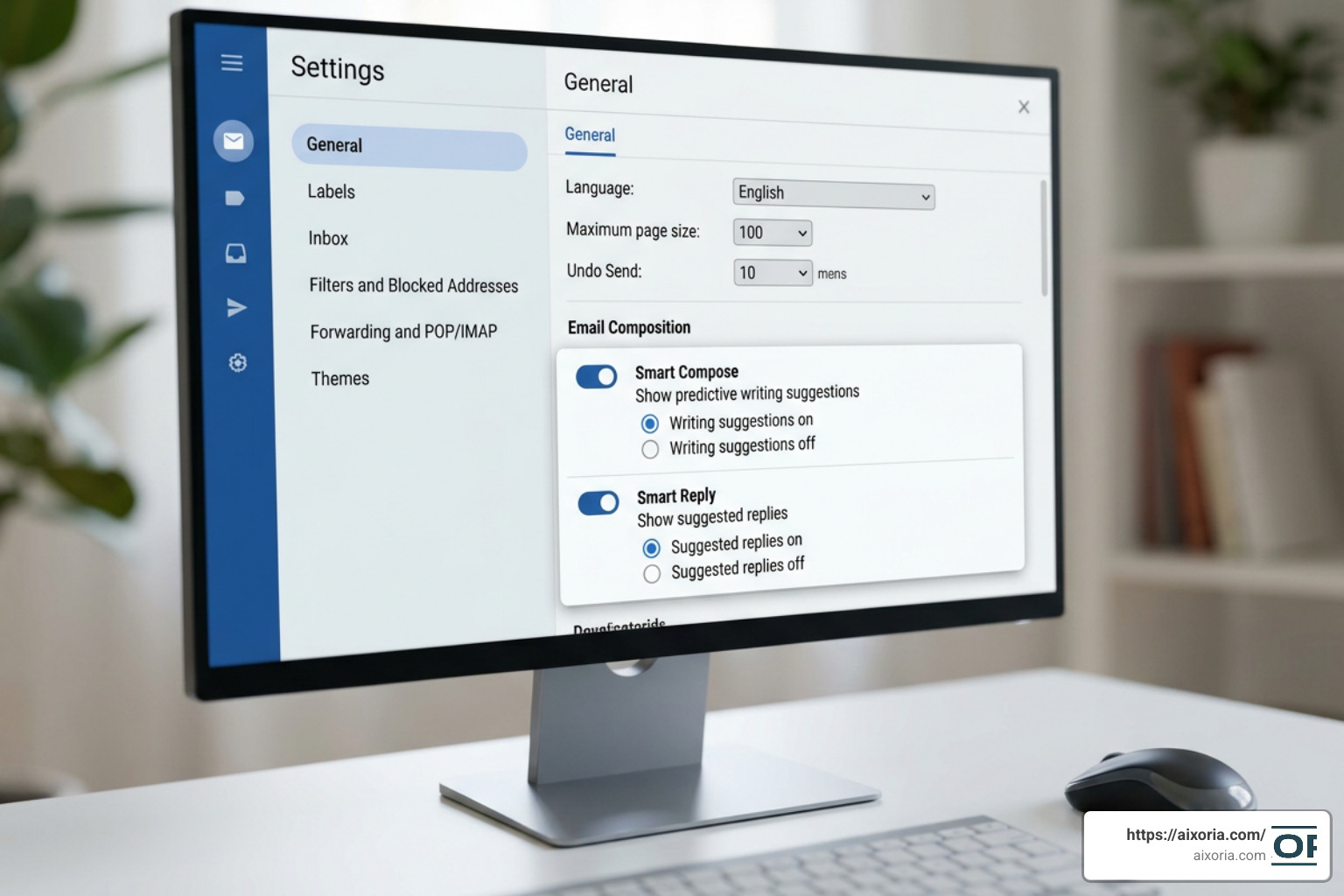
- Open Gmail on your desktop.
- Click the Gear icon in the top-right corner and select See all settings.
- Under the General tab, scroll down to find the following options:
- Writing suggestions (Smart Compose): Select Writing suggestions off.
- Smart Compose personalization: Select Personalization off.
- Smart Reply: Select Smart Reply off.
- Scroll to the very bottom of the page and click Save Changes.
By turning these settings off, you also limit the data Google scans within your emails to generate these suggestions. This is a crucial step for anyone concerned about digital privacy and data security. To learn more about how Workspace handles your data, check out the guide on Removing AI From Your Google Account. If you want to replace these built-in prompts with tools you actually control, explore our list of the What are the best AI tools for work?.
Removing Gemini and AI Features from Android and Google Devices
On Android devices, Google has positioned Gemini as the default assistant, replacing the classic Google Assistant. If you prefer a faster, voice-only assistant without conversational AI prompts, you can downgrade Gemini back to the classic version.
To disable Gemini on Android and restore Google Assistant:
- Open the Settings app on your Android device.
- Navigate to Apps → Assistant (or search for “Digital Assistant” in the settings search bar).
- Tap on Digital Assistant from Google.
- Switch your preferred digital assistant from Gemini back to Google Assistant.
Additionally, you can clean up other system-level AI services on your phone:
- Disable AI Core: Go to Settings → Apps → See all apps → AICore (or Android System Intelligence) and tap Disable. This stops background on-device AI processing.
- Turn Off Gemini in Google Photos: Open Google Photos, tap your profile icon, select Photos settings, and toggle off Use Gemini in Photos to disable conversational photo search features.
- Revoke Permissions: Go to Settings → Privacy → Permission manager. Review permissions for the Google and Gemini apps. Revoking access to your Contacts, SMS, and Notifications ensures the background AI cannot actively scan your personal communication.
For a comprehensive, step-by-step walkthrough of all 16 system-level toggles, we highly recommend reading How to Disable Google AI on Android: 16 Steps That Work << Android :: Gadget Hacks. You can also find additional device-specific tips in How to Turn Off Google AI: Control Your Device With Verified Steps.
Frequently Asked Questions about Disabling Google AI
What are the best alternative search engines for an AI-free experience?
If you want to avoid Google’s aggressive AI integration entirely, switching your default search engine is the most effective solution. Excellent privacy-focused alternatives include:
- DuckDuckGo: Offers a clean, tracker-free search experience. While it has optional AI search features, they are strictly opt-in and easy to ignore.
- Brave Search: Built on an independent search index, Brave provides fast, highly accurate results with a simple toggle to disable its “Answer with AI” summarizer.
If you are looking for alternative conversational tools that keep your searching and chatting completely separate, you might want to ask: Is there a free AI as good as ChatGPT in 2026? to find dedicated platforms that do not clutter your daily web browsing.
What happens when I disable Google AI features?
Disabling these features will significantly speed up your search loading times and clean up your user interface. You will lose predictive text in Gmail and Docs, meaning you will have to type your messages manually—which many users prefer for a more authentic voice.
In Search, you will lose the quick-answer boxes, but you will regain direct access to original, high-quality sources without having to scroll past a massive block of generated text. These changes are 100% reversible. If you ever want to try Google’s new features again, you can simply toggle them back on in your settings or Search Labs. For a deeper look at how these changes affect your daily search layouts, refer to How to turn off ai mode on google : A 2026 Beginner’s Manual | WEEX Questions.
Can I completely opt out of Google’s data collection for AI training?
You can significantly limit what Google collects by adjusting your account activity controls. Go to your Google Account settings, navigate to the Data & privacy tab, and locate Activity controls. From here, you can pause your Web & App Activity and turn off Gemini Apps Activity. Deleting your past Gemini history ensures your previous prompts are not stored on Google’s servers for future model training.
Conclusion
While Google continues to push Gemini and generative summaries into every corner of its ecosystem, you do not have to accept the default settings. By taking less than an hour to adjust your search parameters, update your Gmail preferences, and configure your Android system settings, you can build a much cleaner, faster, and more private digital environment.
Taking back control of your workflow is all about choosing the tools that fit your personal style. For more practical guides, step-by-step walkthroughs, and tips on managing your digital tools, Explore more AI Tutorials and guides on Aixoria.