What Is a Drawing App for Windows, and Which One Should You Use?
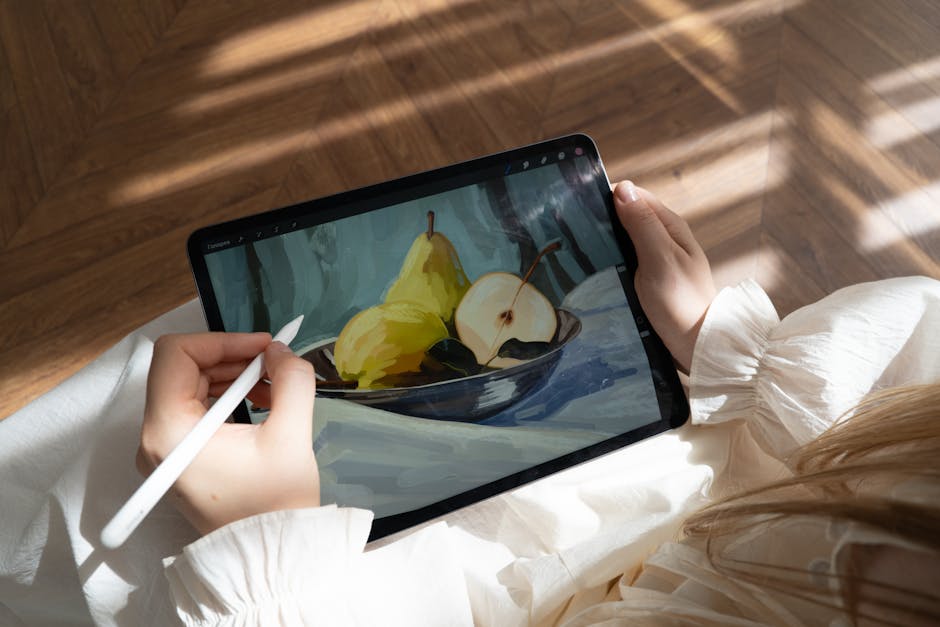
A drawing app for Windows is a software program that lets you create, edit, and manipulate visual art directly on your PC — using a mouse, touchscreen, or stylus pen. These apps range from simple built-in tools like Microsoft Paint to professional-grade software used by studios at Marvel and Warner Bros. Animation.
Quick answer: A drawing app for Windows is any software that provides a digital canvas with tools like brushes, layers, and drawing instruments to create artwork on a Windows PC.
Here’s what you need to know at a glance:
| Type | Examples | Best For | Cost |
|---|---|---|---|
| Built-in | Microsoft Paint | Casual use, quick edits | Free |
| Free/Open-source | Krita | Digital painting, concept art | Free |
| Mid-range paid | Clip Studio Paint | Comics, illustration, animation | From $0.99/mo |
| Professional | CorelDRAW, Photoshop | Graphic design, print work | $22.99+/mo |
Whether you’re a complete beginner picking up digital art for the first time, or a working illustrator looking to switch tools, choosing the right app makes a huge difference in your workflow.
As one digital artist put it when starting out: “It depends on what you want to draw.” That’s still the best advice in July 2026 — because the right answer genuinely varies based on your goals, budget, and hardware.
This guide breaks down the six best drawing apps for Windows so you can find the right fit fast.
What is a Drawing App for Windows?

At its heart, what is a drawing app for Windows? It is a digital workspace designed to translate your physical hand movements into digital strokes. Unlike static photo viewers, these applications provide a highly interactive canvas equipped with virtual brushes, pens, pencils, and erasers.
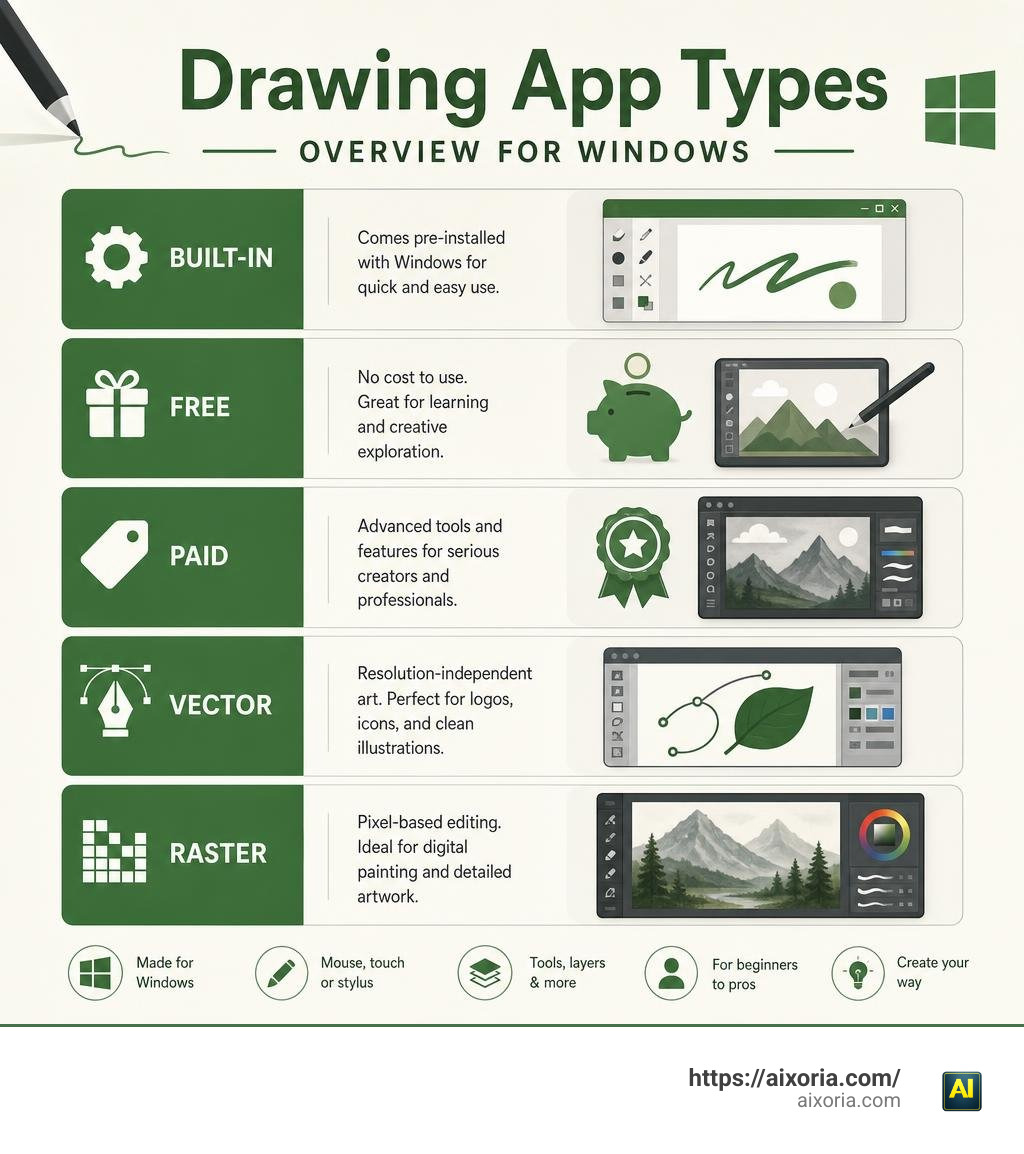
When you dive into digital creation, you will quickly find that these apps fall into two main categories: raster-based and vector-based.
- Raster Graphics: These apps paint with pixels. Every stroke you make is mapped onto a grid of tiny colored squares. This is the standard for digital painting, concept art, and photo editing because it allows for incredibly smooth color blending and rich textures. However, if you zoom in too far or try to blow up your image to billboard size, it will pixelate.
- Vector Graphics: Instead of pixels, vector apps use mathematical formulas to draw lines, curves, and shapes. This means you can scale your artwork infinitely—from a tiny web icon to a massive physical banner—without losing a single drop of quality.
If you are just getting started and want to understand the basics of design before committing to a premium tool, we highly recommend reading our guide on the Best Graphic Design Software for Beginners (Free) to help build your foundational skills.
Understanding What is a Drawing App for Windows?
To truly understand what is a drawing app for Windows, we have to look at how it interacts with physical hardware. While you can draw with a mouse or a laptop touchpad, the magic really happens when you introduce a stylus and a drawing tablet (like a Wacom, Huion, or a Microsoft Surface device).
Windows has built-in, deep support for pen inputs. Modern drawing apps leverage this by utilizing Windows Ink to detect:
- Pressure Sensitivity: Pressing harder makes your brush stroke thicker or more opaque, mimicking physical media like charcoal or watercolor.
- Tilt Support: Tilting your stylus allows you to shade with the side of your digital pencil, just like you would on paper.
This hardware-software marriage turns your computer into an infinite sketchbook. You can sketch, ink, color, and even animate in a single space without ever cluttering your desk or waiting for paint to dry. If you want to explore the wider landscape of zero-cost creative tools, check out our curated list of the Best Free Graphic Design Software.
Core Features of What is a Drawing App for Windows?
When evaluating different drawing programs, look past the basic brush tool and evaluate these core pillars of digital art:
- Brush Engines: A great brush engine determines how naturally a pen stroke behaves. Premium apps offer highly customizable settings, letting you adjust wetness, color mixing, and stabilization (which smooths out shaky hand movements).
- Layer Management: Layers act like stacked sheets of transparent acetate. You can sketch on Layer 1, draw clean linework on Layer 2, and add color on Layer 3. This allows you to edit individual elements without ruining the rest of your composition.
- Non-Destructive Editing: This refers to features like layer masks, adjustment layers, and smart filters that allow you to make sweeping changes to your art and easily undo them later.
- Color Profiles and CMYK Support: If your art is only going to live on screens (Instagram, webtoons, games), the standard RGB color profile is perfect. However, if you plan to print your work on physical merchandise, posters, or books, your drawing app needs to support CMYK color profiles to ensure the printed colors match what you see on your screen.
The 6 Best Drawing Apps for Windows Compared
To help you choose the best fit for your specific workflow, we’ve put together a quick breakdown of how these top six tools stack up against one another in July 2026:
| App | Best For | Licensing Model | Key Highlight |
|---|---|---|---|
| Clip Studio Paint | Illustrators, Comic Artists, Animators | Perpetual License ($63 PRO / $277 EX) or Subscriptions from $0.99/mo | Industry-standard 3D reference models & vector line art |
| Krita | Digital Painters & Concept Artists | 100% Free & Open-Source (Optional $12.99 Windows Store version for auto-updates) | Professional-grade brush engine with zero cost |
| Leonardo | Tablet Users & Fast Sketching | Paid (Free trial available) | Starts in under 0.5 seconds with an infinite canvas |
| Microsoft Paint | Casual Sketchers & Quick AI Edits | Free (Built into Windows 11) | Upgraded with layers, transparency, and AI Cocreator |
| DrawPad | Graphic Designers & Multi-Format Creators | Free for home use; Paid for commercial licenses | Seamlessly blends raster painting with vector layout tools |
| CorelDRAW | Professional Vector Illustrators & Sign Makers | Subscription or One-time purchase | Advanced vector shaping, multipage layouts, and generative AI |
1. Clip Studio Paint

If your goal is to draw character illustrations, manga, webtoons, or frame-by-frame animations, Clip Studio Paint – Digital Art App for Drawing & Painting is arguably the most complete studio you can put on your Windows PC. It is trusted by top-tier professionals at Marvel, Warner Bros. Animation, and WEBTOON Entertainment.
One of its biggest competitive advantages is its natural drawing feel. The pen stabilization is incredibly smooth, making clean inking a breeze. Additionally, it features unique vector layers for linework. Unlike standard raster lines, vector lines in Clip Studio Paint can be edited after you draw them—you can shift points, adjust line thickness, and use a specialized eraser that cleans up overlapping lines right at their intersections.
For artists who struggle with anatomy or difficult angles, the app offers fully customizable 3D models. You can drag a 3D mannequin onto your canvas, adjust its proportions, pose it, and even use your computer’s webcam to scan your own hands to pose the model’s fingers.
- Pricing: A perpetual license for Windows/macOS starts at $63 USD for the PRO version and $277 USD for the EX version (which includes unlimited animation frames and multi-page book management). Alternatively, flexible monthly subscriptions start at just $0.99 USD/month.
2. Krita
If you have a tight budget but still want professional-grade features, Krita is the absolute gold standard. It is a completely free, open-source painting program developed by a global community of passionate artists who believe high-quality creative tools should be accessible to everyone.
Krita is designed primarily for digital painters, concept artists, and matte painters. Its brush engine is incredibly deep, offering customizable brush stabilizers, a pop-up color palette that appears right at your cursor, and seamless wrap-around textures for game design. It also includes full support for non-destructive editing, layers, masks, and surprisingly robust 2D frame-by-frame animation tools.
To learn more about how Krita stacks up against other budget-friendly options, take a look at our breakdown of the Best Free Drawing Program for PC in 2026: Top 5.
- Pricing: Krita is 100% free to download from its official website. If you want to support development and get automatic updates directly through the Windows Store, you can purchase the store version for $12.99 USD.
3. Leonardo
For those who use portable Windows tablets like the Microsoft Surface Pro, Surface Book, or a Wacom companion device, Leonardo: The best drawing & painting app for Windows is a breath of fresh air.
Many professional art programs are incredibly resource-heavy, causing laptop fans to spin up and battery life to plummet. Leonardo is built from the ground up for speed and touch optimization. It starts in less than half a second, saves files instantly, and lets you paint with massive brushes on high-resolution canvases without a hint of lag.
Its standout feature is the infinite canvas. This turns your workspace into a giant, continuous sketchbook. You can scroll infinitely in any direction to brainstorm, map out workflows, or keep sketching without ever having to open a new file. It also includes beautiful perspective tools, making it popular for industrial designers, architects, and storyboard artists.
- Pricing: Leonardo offers a free trial, with a highly affordable one-time purchase to unlock the full version.
4. Microsoft Paint
Forget everything you remember about the classic MS Paint from your childhood. In Windows 11, Microsoft has completely refreshed the legacy app, turning it into a surprisingly capable casual drawing tool.
You can learn more about its modern capabilities directly via Draw, Create, and Edit with Paint | Microsoft Windows . Today’s Paint supports layers and transparency, allowing you to build up digital illustrations in a non-destructive way.
Furthermore, Paint is now infused with impressive AI-powered features. It includes a one-click Background Removal tool that isolates subjects instantly, and Cocreator (powered by generative AI). Cocreator lets you combine rough hand-drawn brush strokes with a descriptive text prompt to generate refined, beautiful artwork in real time.
- Pricing: Free (built natively into Windows 11). Advanced generative AI features like Image Creator run on a credit-based system, starting users off with 50 initial credits.
5. DrawPad
If you need a tool that bridges the gap between digital painting and business graphic design, Easily Design, Paint and Edit Graphic Images with DrawPad. is an excellent lightweight choice.
DrawPad allows you to paint with traditional-feeling media like crayons, markers, and spray paint, while keeping your overall design in a scalable vector format. It features a helpful template wizard that makes it incredibly easy to quickly draft business cards, flyers, menus, or web banner ads.
It also supports advanced features like curved text (allowing your typography to follow waves or circles) and is highly compatible with third-party assets, meaning you can import standard Photoshop brush packs (.abr) to customize your drawing experience. Plus, for retro computing enthusiasts, DrawPad offers legacy downloads compatible with operating systems all the way back to Windows 98!
- Pricing: Free for non-commercial, home use, with paid licenses available for commercial design work.
6. CorelDRAW Graphics Suite
For professional graphic designers, print shops, and industrial artists, Graphic design software with CorelDRAW Graphics Suite is a heavyweight powerhouse.
CorelDRAW specializes in high-end vector illustration, complex page layouts, typography management, and professional print preparation. The 2026 version has received massive performance upgrades—launching up to three times faster—and features deep integration with Google Fonts and variable typography.
It also features advanced generative AI tools (powered by models like Flux and Stable Diffusion) built directly into the vector workspace. You can generate high-quality raster textures, remove backgrounds, or mask photos with AI, all while keeping your core layout in a vector format.
- Pricing: CorelDRAW is a premium enterprise-grade tool available via subscription or a one-time purchase license. Subscribers receive 2,000 monthly AI credits to power the built-in generative tools.
How to Choose the Right Drawing Software for Your Needs
With so many excellent options available, finding the right drawing app for Windows comes down to a few key questions:
- What is your primary artistic style? If you want to paint rich, textured landscapes, go with a raster-focused app like Krita. If you are designing logos or marketing materials that must scale without pixelating, choose a vector-based program like CorelDRAW or DrawPad. If you want to draw comics or manga, Clip Studio Paint is unmatched.
- What hardware are you using? If you are drawing on a lightweight Windows tablet on the go, a highly optimized, fast-loading app like Leonardo or Microsoft Paint will save your battery life and prevent lag. If you have a powerful desktop setup with a dedicated drawing tablet, heavy-duty apps like Clip Studio Paint or CorelDRAW will run beautifully.
- What is your budget? Never feel pressured to pay for a subscription if you are just starting out. You can create world-class art using Krita or the free version of DrawPad without spending a single penny.
Frequently Asked Questions
Does Windows 11 have built-in drawing tools?
Yes! Windows 11 comes with several built-in creative tools. Microsoft Paint is the main drawing app, now updated with layers, transparency, background removal, and AI Cocreator.
Additionally, you can use Microsoft Whiteboard for freeform brainstorming on an infinite canvas, and the Snipping Tool to quickly capture screenshots and write hand-drawn annotations over them using a stylus.
Can I use drawing apps for purposes other than art?
Absolutely. Many professionals use drawing apps for:
- Whiteboarding & Mind Mapping: Using an infinite canvas like Leonardo to map out complex business strategies or code workflows.
- Photo Editing: Using raster tools to touch up photos, remove backgrounds, or create digital collages.
- Graphic Design: Designing business collateral, flyers, web banners, and custom social media graphics.
How do drawing apps for Windows compare to iPad apps?
While the iPad is famous for exclusive drawing apps like Procreate (which costs a flat $12.99 USD with no free trial), Windows offers several distinct advantages:
- Hardware Flexibility: On Windows, you aren’t locked into one screen size. You can connect massive 32-inch interactive pen displays (like a Wacom Cintiq) to your PC, giving you a massive physical canvas that no tablet can match.
- File Management: Windows handles massive, multi-gigabyte project files, complex folder structures, and external backup drives much more efficiently than mobile operating systems.
- True Desktop Performance: Heavy-duty vector rendering and multi-page comic layouts require significant RAM and GPU power. A well-specced Windows PC can handle complex projects that would cause mobile apps to crash.
Conclusion
Finding the right drawing app for Windows is all about aligning your creative goals with the right digital toolkit. Whether you choose the community-backed power of Krita, the industry-standard comic tools of Clip Studio Paint, or the fast, tablet-optimized canvas of Leonardo, the Windows ecosystem has something for every skill level and budget.
Once you have your creative canvas set up, it’s time to optimize the rest of your digital workspace. To keep your ideas flowing and maximize your daily output, check out our guide on how to Boost your creative workflow with the best AI for productivity in 2026.