Can ChatGPT create PPT slides? Yes — but with some important caveats depending on how you use it.
Here’s the quick answer:
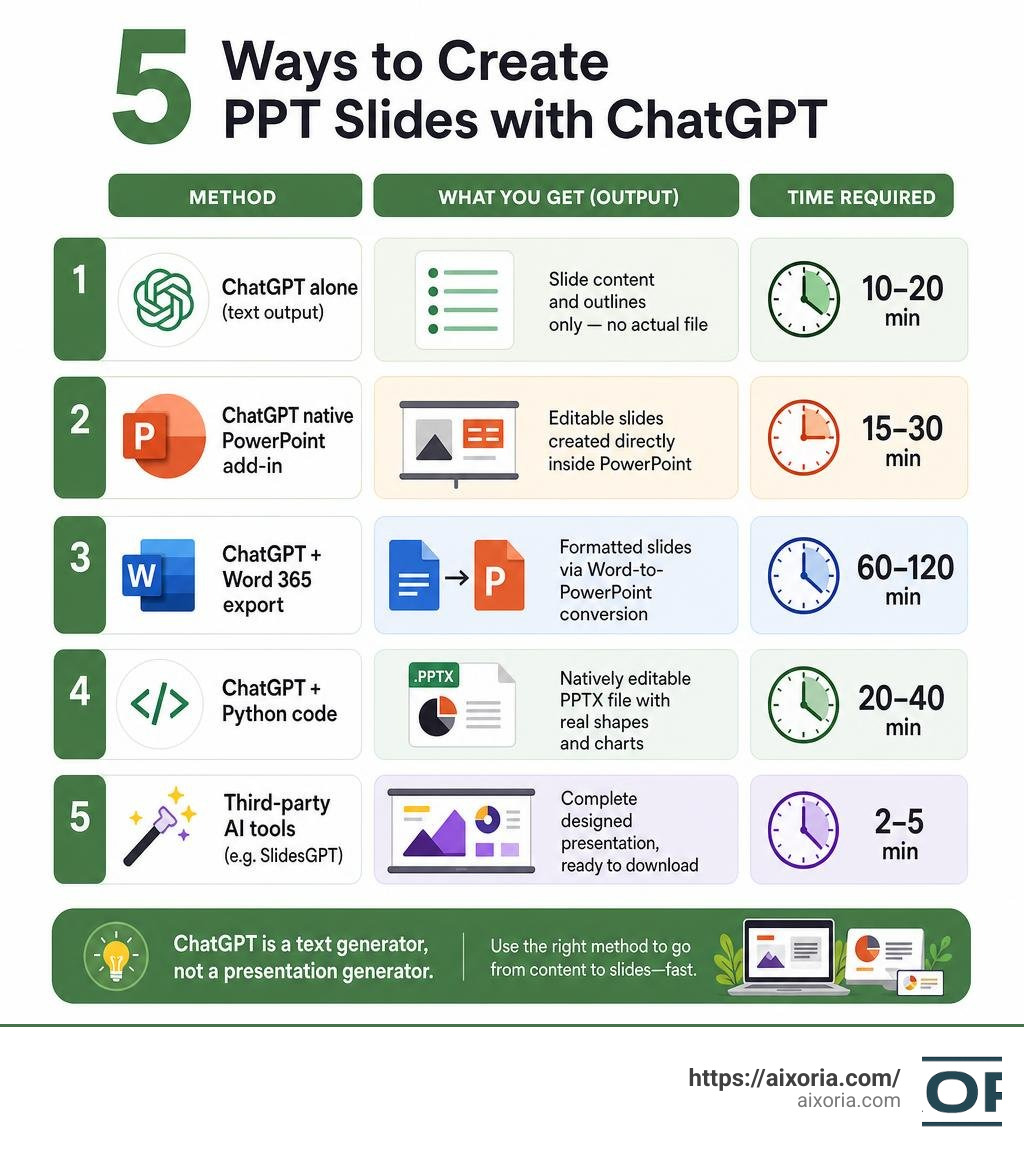
| Method | What You Get | Time Required |
|---|---|---|
| ChatGPT alone (text output) | Slide content and outlines only — no actual file | 10-20 min |
| ChatGPT native PowerPoint add-in | Editable slides created directly inside PowerPoint | 15-30 min |
| ChatGPT + Word 365 export | Formatted slides via Word-to-PowerPoint conversion | 60-120 min |
| ChatGPT + Python code | Natively editable PPTX file with real shapes and charts | 20-40 min |
| Third-party AI tools (e.g. SlidesGPT) | Complete designed presentation, ready to download | 2-5 min |
ChatGPT is a text generator, not a presentation generator. On its own, it can write slide outlines, bullet points, speaker notes, and titles — but it cannot design slides or export a styled .pptx file directly from a standard chat session.
That said, there are now several practical ways to bridge that gap — including a native ChatGPT add-in for PowerPoint that works directly inside Microsoft’s app. We cover all of them in this guide.
For a deeper look at AI-powered options beyond ChatGPT, see Can I Use AI to Create PowerPoint Presentations.
Can ChatGPT Create PPT Slides? The Short Answer
When we ask if Can ChatGPT create PPT slides?, we have to separate the text content from the visual design. In its raw form, ChatGPT is a highly sophisticated large language model. It excels at structuring information, organizing hierarchy, drafting compelling slide titles, and refining speaker notes. However, it does not natively output a styled .pptx file directly in the chat window.
To get actual, visual slides, we must connect ChatGPT’s text capabilities to some form of design engine. This can be done through Microsoft’s native integrations, manual export workflows, or dedicated third-party tools. If you simply paste a prompt into ChatGPT and expect a beautifully designed presentation to download instantly, you will be disappointed. But if you use ChatGPT to build the structural blueprint and then leverage the right integration, you can cut your presentation creation time in half.
For a broader overview of how artificial intelligence is changing the presentation landscape, check out our comprehensive guide on What Are The Best Ai Tools For Creating Presentations A Practical Guide For Fast Polished Decks.
3 Methods to Generate PowerPoint Presentations with ChatGPT
To help you understand the landscape of AI presentation building in 2026, we have broken down the three most common workflows. Each method balances speed, design control, and technical effort differently.
- The Native Add-in Method: Best for users who want to stay inside Microsoft PowerPoint and edit their presentations using conversational, plain-language commands.
- The Markdown and Word 365 Method: Best for users who want a free, structured workflow that quickly converts text into a basic slide deck without writing any code.
- The Python Code Method: Best for advanced users who want natively editable PowerPoint shapes, text boxes, and charts generated programmatically.
For a detailed breakdown of how these stack up against other standalone AI slide makers, read our review of the 20 Best Ai Tools To Create Powerpoint Presentations.
Can ChatGPT Create PPT Slides Directly? Using the Native Add-in
The most direct way to build slides with OpenAI’s technology is through the official ChatGPT for PowerPoint | Create and edit presentations with ChatGPT integration, which is currently available in beta globally. This feature is accessible to ChatGPT Business, Enterprise, Edu, Teachers, K-12, Free, Go, Pro, and Plus users.
Instead of jumping back and forth between your browser and your desktop apps, this integration works directly inside PowerPoint. It reads the structure of your deck to ensure that all generated elements remain fully editable.
To install and use the native add-in, follow these simple steps:
- Open Microsoft PowerPoint on your computer.
- Navigate to the Home tab on the ribbon and click on Add-ins, then search for ChatGPT.
- Install the add-in and open the ChatGPT panel from your ribbon.
- Sign in using your OpenAI account credentials.
- Start prompting! You can ask ChatGPT to draft new slides from scratch, rewrite existing content to make it punchier, or analyze your current deck structure.
This method is incredibly powerful for conversational editing. For example, you can upload your rough meeting notes and type: “Turn these notes and our Q3 KPIs into a 10-slide board update with an executive summary, a risks slide, and clear next steps.” The add-in will draft the slides right before your eyes, keeping all text boxes and shapes fully editable so you can apply your corporate templates afterward.
Method 2: The Markdown and Word 365 Workflow
If you prefer not to use add-ins, you can use a clever “secret” workflow that relies on Microsoft Word 365’s native export capabilities. This method is completely free and requires no design skills.
First, ask ChatGPT to write your presentation outline using Markdown formatting. This is crucial because Markdown creates a clear heading hierarchy that Microsoft Word can interpret. Here is an example of how you would prompt ChatGPT:
“Act as a professional presentation designer. Create a detailed outline for a 6-slide presentation on the benefits of remote work. Format the output in Markdown. Use H1 for slide titles and bullet points for the slide content.”
Once ChatGPT generates the Markdown text, copy it and paste it into a blank document in Microsoft Word 365 (the web version). In Word, go to File, select Export, and click on Export to PowerPoint presentation. Word will allow you to choose a basic design theme and will automatically map your H1 headings to slide titles and your bullet points to slide body text.
While this method takes about 60 to 120 minutes to polish into a client-ready deck, it is an excellent way to get over writer’s block and build a functional draft. For more tools that fit this hybrid workflow, check out our list of the 9 Best Ai Tools For Powerpoint Presentations In 2026.
Method 3: Generating Python Code for Natively Editable PPTX
For those who want highly customized, natively editable slides without paying for premium software, you can instruct ChatGPT to write Python code using the python-pptx library. This is a highly technical but incredibly cost-effective method.
By utilizing open-source tools like the giggitygi/ppt-master repository, you can generate complete presentations where every single element is a real PowerPoint object (using DrawingML) rather than a flat image. This means your text boxes, shapes, and charts remain 100% editable in PowerPoint.
The workflow looks like this:
- You upload your source document (such as a PDF, DOCX, or markdown file) to ChatGPT.
- You ask ChatGPT to write a Python script using
python-pptxthat maps your document’s content to specific slide coordinates, shapes, and text boxes. - You run the code locally or within ChatGPT’s Advanced Data Analysis environment.
- You download the resulting
.pptxfile.
Using this developer-centric approach can cost as low as $0.08 per presentation when utilizing API-driven AI editors. It is highly favored by researchers and technical analysts who need to convert dense reports into structured slide layouts.
Key Limitations of ChatGPT for Slide Creation
While ChatGPT is an outstanding assistant, it is important to manage your expectations. It has several distinct limitations when it comes to professional presentation design.
- No Native Media Curation: ChatGPT cannot browse stock image libraries, select relevant corporate photography, or set up complex slide transitions and animations.
- Design Quality: While the native add-in and Word export workflows provide a starting layout, they often look generic. They lack the polished, bespoke feel of a deck created by a professional designer or a dedicated AI tool.
- Content Truncation: When generating large presentations, ChatGPT will often stop writing mid-sentence due to output token limits.
- Inaccurate Visual Representations: If you ask ChatGPT to create a chart using DALL-E, it will generate a flat image. These images often feature misspelled text, fabricated numbers, and unhelpful visual representations.
To see how specialized tools overcome these design hurdles, read our evaluation of the Best Ai Tool For Ppt Generation In 2026 Testedbest Ai Tool For Ppt Generation In 2026 Tested.
How to Overcome Truncation and Content Limits
One of the most frustrating experiences is asking ChatGPT for a comprehensive, 50-slide educational deck, only to have it truncate the output after slide 12. This happens because of the model’s context window and output limits.
To overcome this, we recommend a strategy called content chunking:
- Upload your source material: Provide ChatGPT with your textbook, PDF, or research notes.
- Divide the work: Instruct the model to break the presentation into manageable sections. For example, tell it: “We are going to build a 100-slide presentation. First, generate only slides 1 through 25 based on Chapter 1.”
- Generate files individually: Have ChatGPT generate separate
.pptxor markdown files for each of these 25-slide sections. - Merge the files: Open the first downloaded file in PowerPoint, go to the end of the deck, click on New Slide, select Reuse Slides, and import the subsequent files to combine them into one seamless presentation.
This systematic approach ensures you get deep, comprehensive coverage of your topic without the AI skipping crucial details. For more practical guides on mastering these types of AI workflows, explore our Aixoria AI Tutorials.
Best Prompting Strategies for High-Quality Presentation Content
The quality of your AI-generated presentation depends entirely on the quality of your input. To get the best results, you should avoid vague prompts like “make a presentation about marketing.” Instead, use structured frameworks.

Two highly effective prompting frameworks are CSI and FBI:
- CSI (Context, Specific, Instruction):
- Context: “I am a finance manager presenting our quarterly results to the board of directors.”
- Specific: “The presentation must be exactly 8 slides, focusing on our 15% revenue growth and our rising operational costs.”
- Instruction: “Write a slide-by-slide outline. For each slide, provide a catchy, narrative-driven title, three clear bullet points, and 2-3 sentences of speaker notes.”
- FBI (Format, Blueprint, Ideas):
- Format: “Format the output as a clean table with columns for Slide Number, Slide Title, Visual Layout Suggestion, Bullet Points, and Speaker Notes.”
- Blueprint: “Follow a classic problem-solution pitch deck blueprint.”
- Ideas: “Include creative analogies to explain our software architecture on slide 4.”
By specifying the exact structure, requesting speaker notes, and asking for data-driven tables, you will receive highly professional content that requires minimal editing.
Can ChatGPT Create PPT Slides with Accurate Data?
When using ChatGPT for professional business or academic presentations, data integrity is paramount. Because language models predict the next most likely word, they can occasionally hallucinate statistics, dates, and historical facts.
To ensure your presentation is accurate, always verify the data. If you are using ChatGPT Plus or Enterprise, enable web search to allow the model to pull the latest statistics from authoritative online sources. When prompting, explicitly command the AI: “Only use verified facts and cite your sources. If you do not know a specific metric, leave a placeholder like [Insert Q3 Revenue Here] instead of guessing.”
For a comparative look at which tools handle business data and professional layouts most reliably, see our analysis on What Tool Creates The Best Business Presentations In 2026.
Frequently Asked Questions about ChatGPT and PowerPoint
Can ChatGPT export directly to .pptx format?
No, standard ChatGPT cannot export a styled .pptx file directly from a basic text prompt in the chat window. To get a download link for a PowerPoint file, you must use the native ChatGPT for PowerPoint add-in, use ChatGPT to generate Python code (python-pptx), or use a third-party GPT from the ChatGPT Store like AI PPT Maker – Instantly Create Presentations with AI | SlidesGPT .
Is the ChatGPT PowerPoint add-in free to use?
The ChatGPT for PowerPoint add-in is currently in beta. It is available to users across various tiers, including Free, Plus, Pro, Business, and Enterprise. While the add-in itself can be added via Microsoft Office, you must sign in with your OpenAI account. Depending on your usage and the specific features you access, API costs or subscription fees (such as ChatGPT Plus at $20/month) may apply.
What is the best alternative to ChatGPT for quick slide design?
If your primary goal is speed and professional design without manual formatting, dedicated AI presentation tools are your best bet. Platforms like AI Generate PPT – Create Presentations from Text | SlidesGo or Microsoft’s Copilot in PowerPoint: build slides with AI | Microsoft PowerPoint can generate fully designed, styled, and structured decks in under five minutes from a single prompt.
To see how these dedicated design tools compare to manual ChatGPT workflows, read our tested rankings of the 7 Best Ai Tool For Ppt In 2026 Tested Ranked.
Conclusion
So, Can ChatGPT create PPT slides? Yes, it absolutely can — but it works best as a collaborative partner rather than a solo designer. Whether you use the native PowerPoint add-in to edit your slides with natural language, leverage the Markdown-to-Word workflow, or run automated Python scripts, ChatGPT is an incredible tool for overcoming writer’s block and structuring your thoughts.
For the best professional results, we recommend using ChatGPT to research, outline, and draft your slide copy, and then importing that refined text into a dedicated presentation tool or applying your own custom corporate templates. Human oversight is still the secret ingredient that turns an AI draft into a winning presentation.
Ready to master more AI-driven productivity hacks? Explore our step-by-step guides and tutorials on the Aixoria AI Tutorials page to stay ahead of the curve!