If you’re searching for the Best Free Photoshop Alternatives in 2026, you’re probably asking the same question thousands of creators ask every month:
“Do I really need to pay for Adobe Photoshop?”
For most people, the answer is no.
Adobe Photoshop is still the industry standard for photo editing, graphic design, retouching, and digital art. But in 2026, the gap between Photoshop and free alternatives has become much smaller.
Today, free tools offer:
- PSD file support
- Layers and masks
- AI-powered background removal
- Generative fill tools
- RAW photo editing
- Digital painting workflows
- Browser-based editing
- Professional export options
The real challenge is not finding a free Photoshop alternative.
The real challenge is choosing the right one for your workflow.
Some are better for photographers.
Some are better for YouTubers and bloggers.
Some are ideal for low-end laptops.
Some are powerful enough for professional client work.
This guide is written from a practical SEO + creator perspective—not a generic copied list.
You’ll find:
- Real free tools only
- AI feature analysis (important in 2026)
- Technical specs professionals care about
- Real usage experience
- Quick comparison table
- FAQs for Google “People Also Ask”
Let’s start with the fastest overview.
Table of Contents
Quick Comparison Table: Top Free Photoshop Alternatives
| Tool | Platform | Best For | AI Features | PSD Support |
|---|---|---|---|---|
| Photopea | Browser | PSD editing | Magic Replace + AI Fill | Yes |
| GIMP | Desktop | Pro retouching | AI plugin support | Partial |
| Krita | Desktop | Artists | AI diffusion plugins | Yes |
| Canva | Browser/App | Beginners | Text-to-Image + Magic Design | Limited |
| Pixlr | Browser | Quick edits | Generative Fill | Basic |
| Darktable | Desktop | RAW editing | Smart enhancement | No |
| RawTherapee | Desktop | Color correction | Assisted optimization | No |
| Paint.NET | Windows | Lightweight editing | Plugin-based | Limited |
| Sumo Paint | Browser | Quick design work | AI-assisted tools | Basic |
9 Best Free Photoshop Alternatives
1. Photopea
Overview
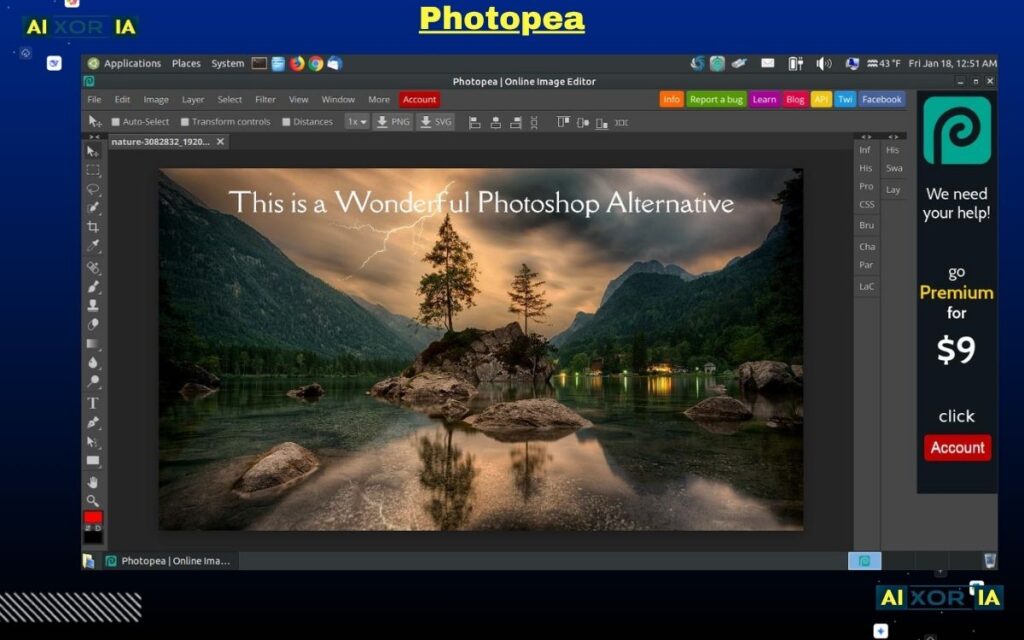
Photopea is one of the best free alternatives to Adobe Photoshop in 2026. It is a browser-based editor that gives users professional editing tools without requiring installation or expensive hardware.
It supports PSD files, layers, masks, text editing, smart objects, and AI-powered tools. The interface feels very similar to Photoshop, which makes it easy for beginners and professionals to switch.
It is especially popular among bloggers, YouTubers, freelancers, and affiliate marketers who need fast editing for thumbnails, banners, and client work.
How It Works
Photopea works directly in your browser.
You simply open the website, upload your file, and start editing.
It offers:
- Layer editing
- PSD support
- Background removal
- Smart selection tools
- Blend modes
- Export in multiple formats
This makes it perfect for quick edits without downloading heavy software.
AI Features
Photopea includes useful AI tools like:
- Magic Replace
- AI background remover
- Smart object cleanup
- Fast content-ready editing
These features help creators save time by reducing manual editing work. Instead of spending 20 minutes removing a background, AI can do it in a few clicks.
This is why many creators use Photopea even if they already have Photoshop.
Free Version and Limitations
The free version is genuinely useful.
You get:
- Full editing access
- PSD support
- Most professional tools
Limitations:
- Ads in the interface
- Large files may feel slower
Still, it is one of the best truly free tools available.
Best Use Cases
Best for:
- YouTube thumbnails
- Blog images
- Affiliate banners
- Client PSD revisions
- Social media graphics
It works especially well for users with low-end laptops.
Pros
- Free to use
- No installation needed
- Strong PSD support
- Photoshop-like interface
- Fast AI tools
Cons
- Ads in free version
- Limited CMYK support
- Slower with heavy files
Real Experience Insight
For quick client edits and thumbnail work, Photopea often feels faster than opening Photoshop itself. Many users start using it as a backup tool and later make it part of their daily workflow.
2. GIMP
Overview
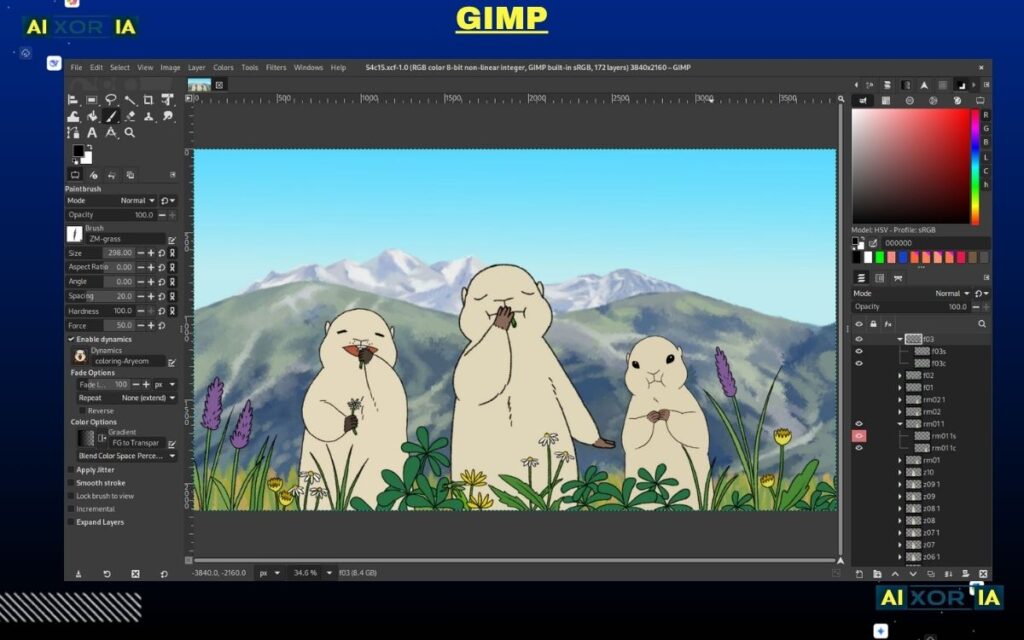
GIMP is one of the most powerful free desktop alternatives to Adobe Photoshop. It is open-source, feature-rich, and built for users who want professional-level editing without paying monthly subscription fees.
Unlike simple online editors, GIMP offers deep control over photo manipulation, retouching, advanced selections, and layer-based workflows.
It is widely used by designers, bloggers, photographers, and developers who want full editing freedom and plugin flexibility.
Its biggest strength is power.
Its biggest weakness is the learning curve.
But once users understand the workflow, GIMP becomes a serious long-term Photoshop replacement.
How It Works
GIMP works as a full desktop application and gives users complete manual control over image editing.
It supports:
- Layer masks
- Clone tools
- Advanced selection tools
- Brush customization
- Script automation
- Plugin support
- High-quality exports
- PSD file compatibility
Unlike browser tools, GIMP is designed for deeper editing workflows and larger projects.
This makes it ideal for professional users who need precision and flexibility.
AI Features
In 2026, AI matters.
Photoshop leads because of AI—but GIMP competes differently.
Instead of built-in AI systems like Adobe Firefly, GIMP uses plugins and integrations.
Users can add:
- Stable Diffusion tools
- AI upscalers
- Smart background removal
- Object cleanup tools
- Automated retouching plugins
- AI-based image enhancement
This creates a customizable AI workflow.
Rather than one fixed AI system, users can build their own editing process based on their needs.
This flexibility is why many professionals still prefer GIMP.
It takes more setup, but offers more control.
Free Version and Limitations
GIMP is completely free.
No subscriptions.
No hidden upgrades.
No trial limitations.
Users get full access from the start.
Limitations include:
- Older-looking interface
- Steeper learning curve
- Some PSD compatibility issues
- Limited CMYK workflow compared to Photoshop
Still, for a free professional editor, it offers massive value.
Technical Verdict
- PSD support: Partial
- CMYK support: Limited
- 16-bit editing: Improved
- GPU acceleration: Moderate
- Plugin support: Strong
- Best for: Professional editing workflows
It performs best for users who want full control instead of fast shortcuts.
Best Use Cases
Best for:
- Professional retouching
- Blog graphics
- Affiliate design work
- Product image editing
- Advanced photo manipulation
- Long-term desktop workflows
It is especially useful for users who want a serious Photoshop replacement without paying monthly.
Pros
- Completely free and open-source
- Powerful professional editing
- Strong plugin ecosystem
- Customizable AI workflows
- Great for advanced users
Cons
- Interface feels outdated
- Harder for beginners
- Limited CMYK support
- Requires time to learn
Real Experience Insight
The first few days with GIMP can feel difficult because the interface is different from Photoshop. But after learning shortcuts and plugins, many users stop missing Adobe completely and prefer the extra control GIMP provides.
3. Krita
Overview
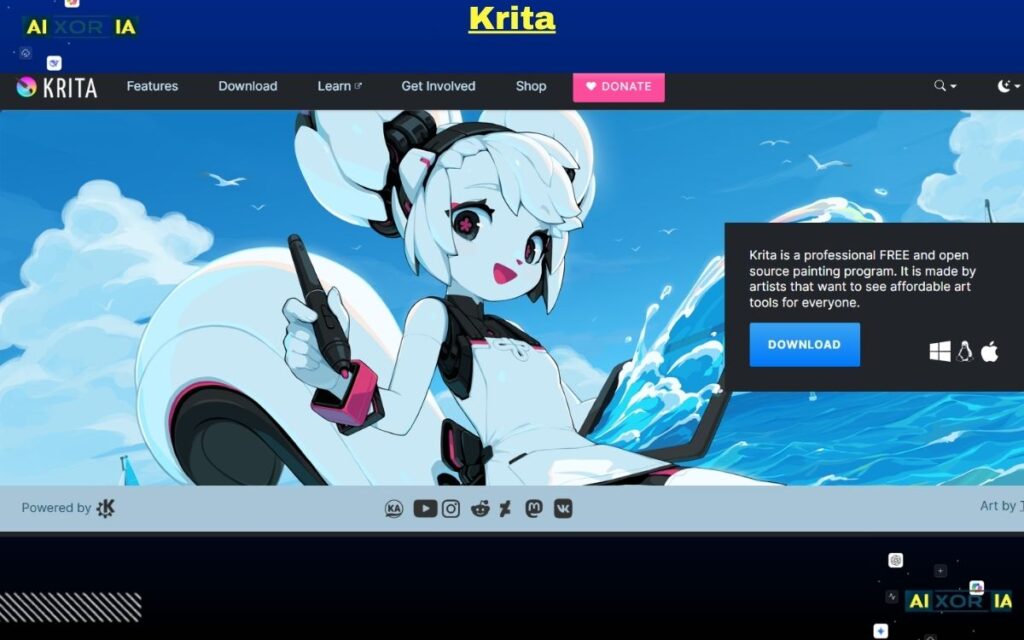
Krita is one of the best free alternatives to Adobe Photoshop for artists, illustrators, and digital creators in 2026.
Unlike tools focused mainly on photo editing, Krita is built for creativity first.
It is designed for:
- Digital painting
- Illustration
- Concept art
- Comic creation
- Texture design
- Animation workflows
Many creators consider Krita better than Photoshop for drawing because its brush engine and tablet support are made specifically for artists. Creative Bloq also highlighted Krita’s strong workspace customization, non-destructive editing, and artist-focused workflow improvements in its 2026 coverage .
It is completely free, open-source, and available for Windows, macOS, and Linux.
That makes it one of the strongest long-term creative tools without subscription costs.
How It Works
Krita works as a full desktop application with a workflow built around illustration and digital painting.
It supports:
- Advanced brush engines
- Layer-based editing
- PSD import/export
- Brush stabilization
- Animation support
- Filter layers
- Non-destructive workflows
- Drawing tablet optimization
Unlike browser editors, Krita is built for long creative sessions and high-detail work. It also includes features like Wrap-Around Mode for seamless textures and customizable dockers/workspaces for different art tasks .
This makes it ideal for professionals and serious hobby artists.
AI Features
In 2026, artists do not use AI to replace creativity.
They use AI to speed up repetitive work.
That is where Krita becomes powerful.
Its plugin ecosystem supports AI-assisted workflows such as:
- Diffusion plugins
- Concept generation
- Background reference creation
- Pose idea generation
- Composition testing
- Lighting studies
- Reference enhancement
Instead of manually building every early-stage concept from zero, artists can use AI for fast idea exploration and then create the final artwork themselves.
This saves creative energy.
And more importantly, it protects focus.
Krita also continues improving professional workflows with better PSD support, on-canvas text editing, comic panel tools, and HDR/Wayland improvements in newer releases like Krita 5.3 and 6.0 .
This is why many artists trust Krita.
It does not push AI as a replacement.
It uses AI as a creative assistant.
That is the smarter approach.
Free Version and Limitations
Krita is fully free.
No subscriptions.
No locked premium plans.
No trial limitations.
Users get full access immediately.
Limitations include:
- Not ideal for heavy photo retouching
- Some Photoshop text-layer compatibility issues
- Learning curve for non-artists
- Interface is more art-focused than photography-focused
Still, for digital painting and illustration, it is one of the best free tools available.
Technical Verdict
- PSD support: Yes
- CMYK support: Good
- 16-bit support: Yes
- GPU acceleration: Strong
- Tablet support: Excellent
- Best for: Illustration + concept art
Its technical strength makes it a serious professional tool, not just a beginner option.
Best Use Cases
Best for:
- Digital painting
- Character design
- Concept art
- Comic creation
- Game textures
- Illustration projects
- Animation practice
- Drawing tablet workflows
It is especially useful for creators who spend more time drawing than photo editing.
Pros
- Completely free and open-source
- Excellent brush engine
- Strong tablet support
- PSD compatibility
- Great for comics and concept art
- Strong artist community support
Cons
- Not ideal for advanced photo retouching
- Text layer compatibility with Photoshop can be limited
- Different workflow from Photoshop
- Can feel complex for beginners
Real Experience Insight
Many artists switch to Krita for the brush engine alone. Once they experience smoother pen pressure and better drawing flow, Photoshop starts feeling like photo software trying to be art software.
4. Canva
Overview
Canva is one of the best free alternatives to Adobe Photoshop for beginners, bloggers, marketers, and content creators.
Unlike Photoshop, Canva focuses on speed and simplicity.
You do not need design skills.
You can create:
- YouTube thumbnails
- Instagram posts
- Blog banners
- Presentations
- Product ads
- Pinterest graphics
- Social media creatives
This is why many users choose Canva instead of complex editing software.
In 2026, Canva also expanded heavily into AI with Canva AI 2.0, adding conversational design, layered editable output, and tools like Magic Design, AI Photo Editor, and text-to-image generation (Canva).
How It Works
Canva works inside the browser and mobile app.
You can start with:
- A blank design
- Ready-made templates
- AI-generated layouts
- Text prompts using Canva AI
Its main tools include:
- Drag-and-drop editing
- Background remover
- Magic Resize
- Brand Kit
- Text-to-Image
- Smart layout generation
Canva AI 2.0 can now generate fully layered editable designs from a single prompt instead of only static outputs (Canva).
This makes it much faster for creators who publish content daily.
AI Features
Canva’s biggest strength in 2026 is AI speed.
Instead of manually designing every post, users can simply describe what they want.
For example:
“Create a YouTube thumbnail for SEO tools”
And Canva AI helps generate the structure.
Its major AI tools include:
- Magic Design
- Text-to-Image
- AI Photo Editor
- Magic Resize
- Background Removal
- Layered object editing
- Conversational design workflows
Canva says AI 2.0 uses layered object intelligence, meaning every generated element stays editable instead of becoming a flat image (Canva).
This saves massive time for bloggers, agencies, and affiliate marketers.
The goal is not replacing creativity.
The goal is removing repetitive design work.
That is why Canva is so popular.
Free Version and Limitations
Free version includes:
- Thousands of templates
- Basic editing tools
- Limited AI features
- Text and image creation tools
Limitations:
- Some AI tools are restricted
- Premium templates locked
- Advanced background tools need Pro
- Brand Kit is limited
Still, for beginners, the free plan is strong enough to start.
Best Use Cases
Best for:
- YouTube thumbnails
- Blog featured images
- Affiliate banners
- Social media posts
- Presentations
- Fast business graphics
It is perfect for users who want speed over complexity.
Pros
- Very beginner-friendly
- Fast browser-based workflow
- Strong AI tools
- Huge template library
- Great for marketers and bloggers
Cons
- Limited advanced editing control
- Not ideal for deep photo retouching
- Some best AI features require Pro
Real Experience Insight
Many people who think they need Photoshop actually only need Canva. For fast publishing, thumbnails, and blog graphics, Canva often saves more time than advanced editing software ever could.
5. Pixlr (Best for Fast AI Editing)
What is Pixlr and How It Helps Creators
Pixlr is one of the Best Free Photoshop Alternatives for users who want fast editing without complex software.
It is a browser-based photo editor designed for speed.
Unlike heavy desktop tools, Pixlr helps creators quickly edit images, remove backgrounds, apply effects, and create social media graphics in minutes.
It is especially useful for:
- Bloggers
- YouTubers
- Affiliate marketers
- Social media managers
- Small business owners
For users who need “fast results” instead of deep professional retouching, Pixlr is a very practical choice.
Key Features
- AI background remover
- Generative Fill tools
- Quick photo retouching
- Filters and effects
- Layer-based editing
- Social media export sizes
- Browser-based workflow
These features make it ideal for daily content creation tasks.
AI Capabilities
Pixlr’s biggest strength is speed.
Its AI tools help users remove unwanted objects, generate quick edits, and clean images without manual editing.
Instead of spending 15 minutes fixing one image, creators can finish the task in a few clicks.
This makes it perfect for fast publishing workflows where time matters more than perfection.
Pricing
- Free plan available
- Premium plans available for advanced features
The free version is enough for most quick editing tasks.
Pros
- Very fast editing workflow
- Strong AI tools
- No installation needed
- Beginner-friendly
- Great for quick content creation
Cons
- Limited advanced editing control
- Not ideal for heavy professional retouching
- Some premium AI tools require upgrade
Real Use Case
A blogger creating featured images for multiple posts can use Pixlr to remove backgrounds, add text, and export optimized images quickly without opening heavy software.
Real Experience Insight
Pixlr is often the tool people use when they need something done immediately. Open, edit, export—done. That simplicity makes it surprisingly useful every day.
Darktable (Best for RAW Photo Editing)
What is Darktable and How It Helps Photographers
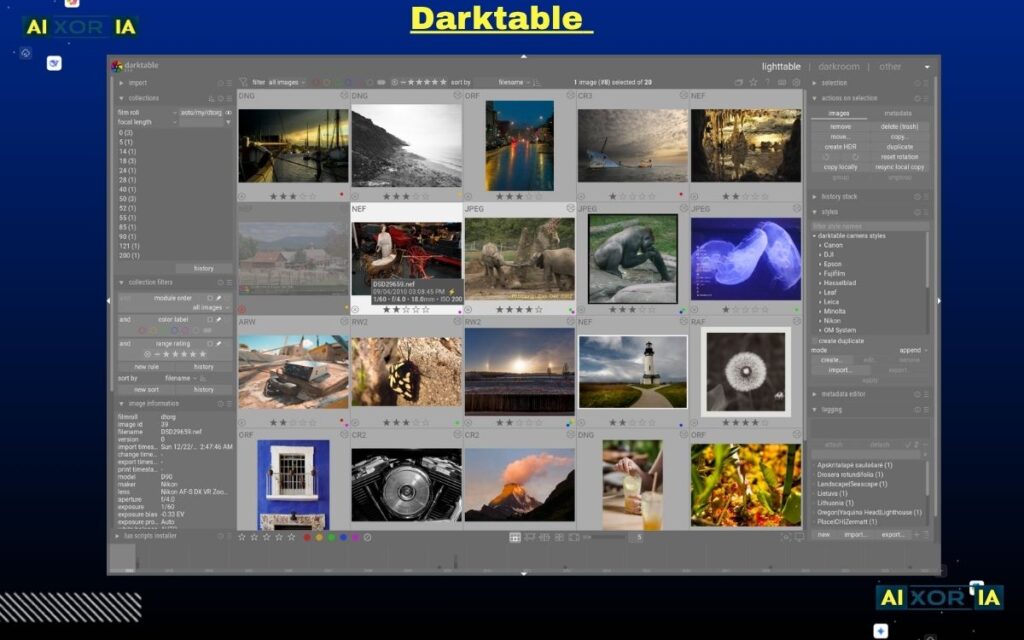
Darktable is one of the Best Free Photoshop Alternatives for photographers who work with RAW images.
It is more similar to Adobe Lightroom than Photoshop, but for photography workflows, that is actually better.
Darktable helps users manage, edit, and improve large batches of photos with professional-level control.
It is especially useful for:
- Wedding photographers
- Travel photographers
- Product photographers
- Professional editors
- Content creators working with RAW files
Instead of basic design editing, Darktable focuses on image quality and workflow speed.
Key Features
- RAW photo processing
- Non-destructive editing
- Color correction
- Exposure control
- Lens correction
- Batch editing
- Professional photo workflow
These features make it perfect for serious photography work.
AI Capabilities
Darktable focuses more on smart photo optimization than heavy AI generation.
It helps with:
- Automatic image enhancement
- Smart exposure balancing
- Color improvement assistance
- Lens and noise correction
This saves photographers time during editing without reducing quality.
It is built for precision, not fast graphic design.
Pricing
- Completely free
- Open-source
- No subscriptions
- No premium upgrade needed
Users get full access from the start.
Pros
- Excellent RAW editing
- Professional photography workflow
- Completely free
- Strong batch processing
- Great for serious photographers
Cons
- Not ideal for graphic design
- Harder for beginners
- Interface takes time to learn
Real Use Case
A wedding photographer editing hundreds of RAW images can use Darktable for color correction, exposure fixes, and batch processing much faster than standard design software.
Real Experience Insight
Photographers often care more about workflow speed than design tools. Darktable handles large photo batches efficiently, which makes it a strong long-term alternative for professional editing.
RawTherapee (Best for Precision Photo Correction)
What is RawTherapee and How It Helps Photographers
RawTherapee is one of the Best Free Photoshop Alternativesfor photographers who need detailed control over image quality.
It is designed for RAW photo editing and professional color correction.
Unlike simple editors, RawTherapee focuses on precision and image quality rather than quick graphic design.
It is especially useful for:
- Professional photographers
- Product photographers
- Portrait editors
- Travel photographers
- Advanced photo retouching workflows
For users who care about perfect exposure, color balance, and sharpness, RawTherapee is a strong choice.
Key Features
- RAW image processing
- Advanced color correction
- Exposure adjustment
- Noise reduction
- White balance control
- Lens correction
- Non-destructive editing
These tools help photographers create high-quality professional images.
AI Capabilities
RawTherapee focuses more on smart optimization than AI generation.
It helps with:
- Assisted image enhancement
- Smart sharpening
- Automatic exposure support
- Better detail recovery
Its goal is image precision, not fast design shortcuts.
This makes it ideal for serious photography work.
Pricing
- Completely free
- Open-source
- No subscription required
- Full access available
There are no hidden premium plans.
Pros
- Excellent RAW editing
- Strong color correction tools
- High-quality professional output
- Completely free
- Great for advanced photographers
Cons
- Not beginner-friendly
- Interface feels technical
- Not ideal for social media design work
Real Use Case
A product photographer editing eCommerce images can use RawTherapee to improve colors, lighting, and sharpness before final publishing.
Real Experience Insight
RawTherapee is not flashy, but professionals trust it because the image quality is excellent. It focuses on results, and that matters most.
Paint.NET (Best Lightweight Photoshop Alternative for Windows)
What is Paint.NET and How It Helps Users
Paint.NET is one of theBest Free Photoshop Alternatives for Windows users who want simple but powerful image editing.
It is faster and easier than Photoshop, especially for beginners.
Paint.NET is perfect for:
- Blog graphics
- YouTube thumbnails
- Website banners
- Product image editing
- Simple design work
It offers more power than basic Paint but feels much lighter than Photoshop.
That makes it a great everyday editing tool.
Key Features
- Layer support
- Basic photo retouching
- Plugin system
- Fast performance
- Easy interface
- Text and shape tools
- Quick export options
These features make it ideal for users who want speed and simplicity.
AI Capabilities
Paint.NET does not focus heavily on built-in AI tools.
However, its plugin ecosystem helps users add:
- Background removal tools
- Smart image cleanup
- Sharpening plugins
- Quick retouching features
It is more about practical editing than advanced AI generation.
This makes it useful for fast daily tasks.
Pricing
- Completely free
- Windows-based desktop software
- No subscription required
Users get full access without monthly costs.
Pros
- Very lightweight and fast
- Beginner-friendly interface
- Plugin support available
- Great for Windows users
- Perfect for quick edits
Cons
- Windows only
- Limited advanced retouching
- Not ideal for professional print workflows
Real Use Case
A blogger creating banners and featured images for multiple articles can use Paint.NET for quick editing without opening heavy software like Photoshop.
Real Experience Insight
For daily blog graphics and fast design work, Paint.NET often gets the job done faster than bigger software. Simple tools sometimes save the most time.
Sumo Paint (Best Hidden Free Browser-Based Editor)
What is Sumo Paint and How It Helps Users
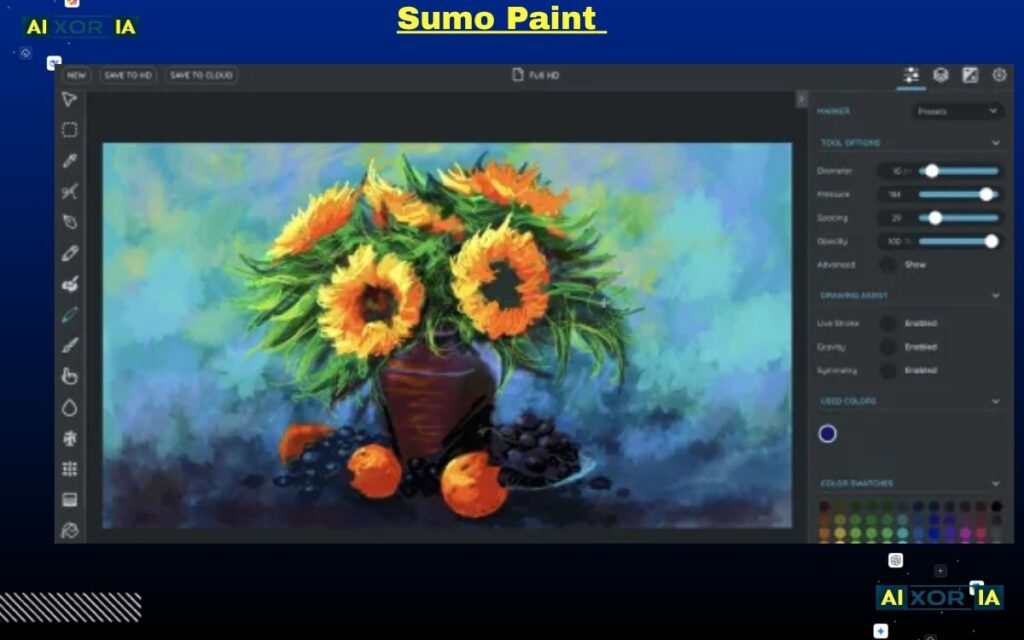
Sumo Paint is one of the most underrated free alternatives to Adobe Photoshop in 2026.
It is a browser-based editor made for users who want fast graphic editing without downloading heavy software.
It is useful for:
- Quick blog graphics
- Social media posts
- Simple thumbnails
- Banner creation
- Fast image touch-ups
Many users ignore it, but it works surprisingly well for daily editing tasks.
Key Features
- Browser-based editing
- Layer support
- Basic photo editing
- Filters and effects
- Text and shape tools
- Fast export options
- Simple design workflow
These features make it good for quick and lightweight editing.
AI Capabilities
Sumo Paint includes basic AI-assisted tools for faster editing.
It helps with:
- Quick background cleanup
- Simple object adjustments
- Fast image enhancements
- Basic design automation
It is not built for heavy professional editing, but it is useful for speed and convenience.
Pricing
- Free version available
- Premium plan for advanced features
The free version is enough for normal daily editing work.
Pros
- No installation needed
- Fast browser workflow
- Beginner-friendly
- Good for quick design tasks
- Lightweight and simple
Cons
- Limited advanced editing tools
- Not ideal for professional retouching
- Some features locked in premium plan
Real Use Case
A small business owner creating social media banners and promotional graphics can use Sumo Paint for fast editing without needing Photoshop.
Real Experience Insight
Many users open Sumo Paint as a backup tool and end up using it regularly because it is simple, fast, and gets the job done without extra effort.
Which Is the Best Free Alternative to Photoshop?
Choosing the Best Free Photoshop Alternatives depends on what kind of work you do.
There is no single perfect tool for everyone.
Some users need fast thumbnail editing.
Some need professional RAW photo correction.
Some need digital painting tools.
Some just want a lightweight editor for blog graphics.
That is why the right choice depends on your workflow—not just popularity.
Quick Final Recommendations
Choose Photopea if:
You want the closest free replacement for Adobe Photoshop with PSD support, layers, and browser-based editing.
Best for:
- Bloggers
- Freelancers
- YouTubers
- Affiliate marketers
Choose GIMP if:
You want deep professional editing and full desktop control.
Best for:
- Designers
- Advanced editors
- Professional retouching
Choose Krita if:
You are an artist, illustrator, or concept creator.
Best for:
- Digital painting
- Comics
- Concept art
- Drawing tablet users
Choose Canva if:
You want fast design work without learning complex software.
Best for:
- Beginners
- Social media creators
- Marketing teams
Choose Darktable or RawTherapee if:
You work with professional photography and RAW images.
Best for:
- Photographers
- Product editors
- Wedding editing workflows
Frequently Asked Questions
Can Photopea Open Photoshop PSD Files?
Yes.
Photopea supports PSD files with layers, masks, text, and most editable elements.
This makes it one of the strongest browser-based Photoshop alternatives.
Is GIMP Better Than Photoshop?
For some users, yes.
Especially if you want free professional editing without monthly subscriptions.
Photoshop still leads in built-in AI features, but GIMP offers more freedom and customization.
Which Free Photoshop Alternative Is Best for Beginners?
Canva and Photopea are usually the best choices.
Canva is easier.
Photopea is closer to Photoshop.
Your choice depends on whether you want simplicity or full editing control.
Is Krita Better Than Photoshop for Artists?
For digital painting, yes.
Many artists prefer Krita because its brush engine and tablet support feel better for illustration work.
Final Thoughts
Most people do not actually need Photoshop.
They need the right tool.
In 2026, free software has become powerful enough for serious professional work.
The smart decision is not asking:
“Which tool is the most famous?”
The smart decision is asking:
“Which tool saves me the most time?”
That is the real answer.
And for most creators today, one of these free tools will do exactly that.
1 thought on “9 Best Free Photoshop Alternatives in June 2026 (No Subscription Required)”