Formatting a Word document sounds simple—until you’re dealing with inconsistent headings, broken spacing, misaligned tables, and documents that look different on every device. For professionals, students, and businesses, poorly formatted documents reduce clarity, credibility, and efficiency.
This is where AI-powered tools are changing the workflow. Instead of manually adjusting styles, spacing, and structure, modern AI tools can automatically format documents, apply consistent styling, fix layout issues, and even restructure content for readability.
In this guide, we’ll break down the best AI tools for formatting Word documents in 2026, including their strengths, limitations, pricing, and ideal use cases.
Table of Contents
What Makes the Best AI Tool for Formatting Word Documents?
Not all tools are designed for formatting. The best AI-powered solutions typically offer:
Intelligent formatting automation
Automatically applies headings, spacing, alignment, and structure based on content.
Style consistency
Ensures fonts, headings, and layouts remain uniform across the entire document.
AI-assisted editing
Improves readability, fixes grammar, and enhances clarity alongside formatting.
Compatibility with Word formats
Supports .doc and .docx files without breaking layouts.
Workflow integration
Works with tools like Microsoft Word, Google Docs, or cloud storage platforms.
READ MORE – Best AI Tools for Formatting Word Document
The Best AI Tools for Formatting Word Documents at a Glance
| Tool | Best For | Key Strength | Pricing |
|---|---|---|---|
| Grammarly | Writing + formatting polish | AI writing + clarity improvements | Free; Premium from $12/month |
| Microsoft Copilot | Native Word automation | Deep Word integration | Included in Microsoft 365 plans |
| Jasper AI | Content restructuring | AI rewriting + formatting | From $39/month |
| Notion AI | Structured documents | Clean formatting + organization | Free; AI add-on from $10/month |
| QuillBot | Rewriting + clarity | Sentence restructuring | Free; Premium from $9.95/month |
| Canva Docs | Visual formatting | Design-focused documents | Free; Pro from $14.99/month |
| ChatGPT | Custom formatting help | Flexible AI formatting instructions | Free; Plus from $20/month |
| Writer | Enterprise formatting | Brand-consistent documents | Custom pricing |
| Zoho Writer | Smart document editing | AI formatting + collaboration | Free; Paid plans available |
Best AI Tool for Overall Writing and Formatting Improvement
Grammarly
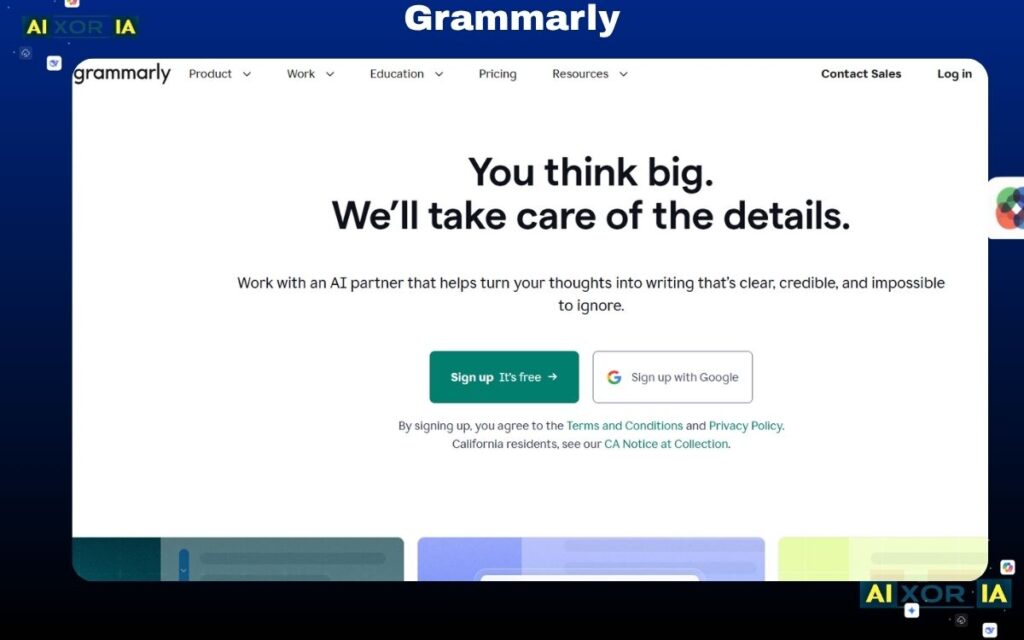
Grammarly is widely known as a writing assistant, but its AI capabilities now extend into formatting and document clarity. It doesn’t directly restructure layouts like a design tool, but it plays a critical role in improving how documents are presented and read.
When working with Word documents, Grammarly ensures consistent tone, correct grammar, and improved sentence structure. This indirectly enhances formatting by making content cleaner and easier to organize. Its AI suggestions help break long paragraphs, improve readability, and align writing with professional standards.
Grammarly integrates seamlessly with Microsoft Word, browser-based editors, and desktop apps, making it easy to apply formatting improvements without changing your workflow.
Pros
- Strong grammar and clarity improvements
- Real-time suggestions
- Easy integration with Word
Cons
- Limited direct layout formatting
- Advanced features require premium plan
Pricing
Free plan available; Premium starts at $12/month
Best AI Tool for Native Word Formatting Automation
Microsoft Copilot
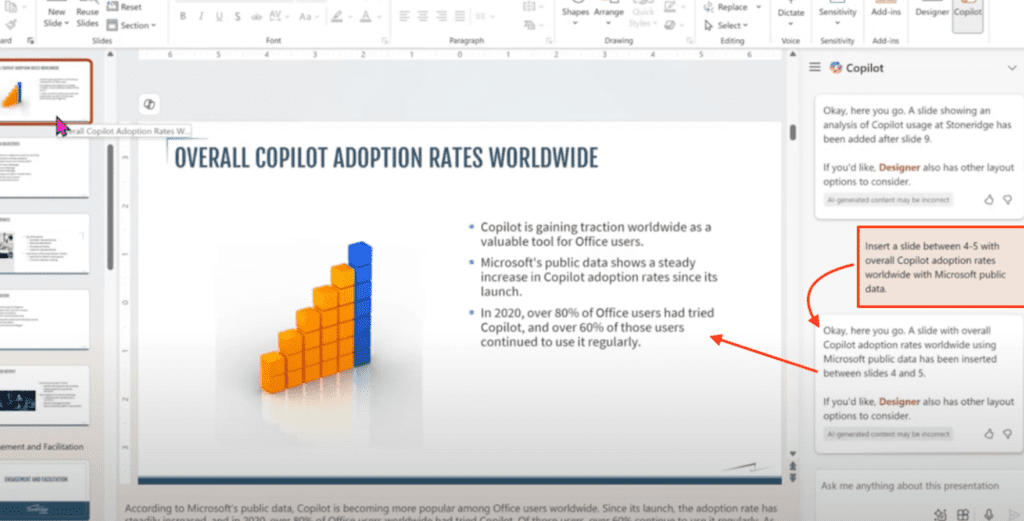
Microsoft Copilot is one of the most powerful AI tools for formatting Word documents because it works directly inside Microsoft Word. Unlike third-party tools, it understands Word’s formatting system at a deeper level.
You can give simple prompts like:
- “Format this document with proper headings”
- “Convert this into a professional report layout”
- “Fix spacing and alignment”
Copilot can apply styles, organize sections, create tables, and standardize formatting across the document. It also helps rewrite content, summarize sections, and improve structure—all within the Word interface.
For businesses and professionals already using Microsoft 365, Copilot is the most seamless and efficient option.
Pros
- Native integration with Word
- Advanced formatting automation
- AI-powered restructuring
Cons
- Requires Microsoft 365 subscription
- Best within Microsoft ecosystem
Pricing
Included with Microsoft 365 Copilot plans (varies by region and plan)
Best AI Tool for Content Restructuring and Formatting
Jasper AI

Jasper AI focuses on rewriting and restructuring content, which makes it useful for formatting documents at a structural level.
Instead of adjusting margins or spacing, Jasper improves how content is organized. It can convert messy text into structured sections, improve flow, and make documents more readable. This is particularly helpful for long reports, blog drafts, or business documents.
Designers and writers often use Jasper to clean up raw content before applying final formatting in Word.
Pros
- Strong content restructuring
- Improves readability
- Useful for long documents
Cons
- Not a direct Word formatting tool
- Requires manual export to Word
Pricing
Starts at $39/month
Best AI Tool for Structured Document Formatting
Notion AI

Notion AI is ideal for creating clean, structured documents from the start. It helps organize content into sections, headings, and logical flows automatically.
While it’s not built specifically for Word, you can create well-formatted documents in Notion and export them to Word with minimal adjustments. Its AI can summarize, rewrite, and structure content, making formatting easier downstream.
Pros
- Clean and structured formatting
- Easy to use
- Strong AI organization
Cons
- Limited Word-specific formatting
- Export may need adjustments
Pricing
Free plan available; AI add-on from $10/month
Best AI Tool for Rewriting and Clarity
QuillBot
QuillBot is primarily a rewriting tool, but it plays a role in formatting by improving clarity and sentence structure.
It helps simplify complex sentences, break down paragraphs, and improve readability—making documents easier to format and present professionally.
Pros
- Strong paraphrasing
- Improves readability
- Affordable
Cons
- No layout formatting features
- Limited design control
Pricing
Free plan available; Premium from $9.95/month
Best AI Tool for Visual Document Formatting
Canva Docs
Canva Docs brings a design-first approach to document formatting. It allows users to create visually appealing documents with proper spacing, alignment, and layout.
Its AI features help generate content, structure documents, and apply consistent styling. For users who want documents that look polished and presentation-ready, Canva is a strong option.
Pros
- Visually appealing layouts
- Easy drag-and-drop interface
- AI-assisted design
Cons
- Not ideal for traditional Word workflows
- Limited advanced formatting controls
Pricing
Free plan available; Pro from $14.99/month
Best AI Tool for Flexible Formatting Assistance
ChatGPT
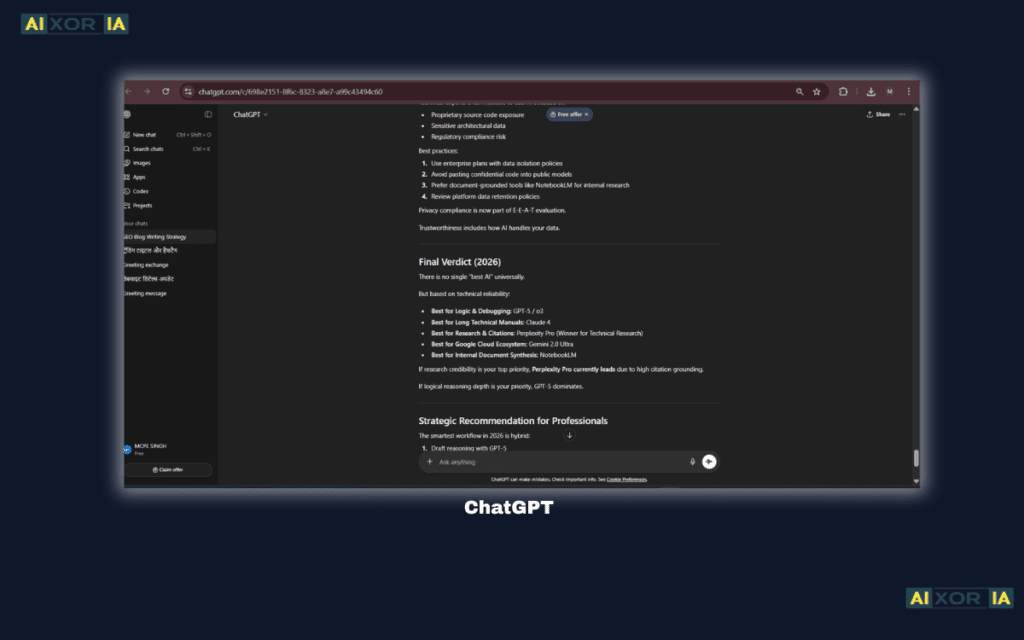
ChatGPT offers a flexible way to format Word documents using custom instructions. You can paste your content and ask for specific formatting styles, such as:
- “Convert this into a structured report”
- “Add headings and bullet points”
- “Improve readability and layout”
While it doesn’t directly edit Word files, it helps prepare content that is easy to format when transferred into Word.
Pros
- Highly flexible
- Supports custom formatting instructions
- Useful for all content types
Cons
- Requires manual transfer to Word
- No direct integration
Pricing
Free plan available; Plus from $20/month
Best AI Tool for Enterprise Document Formatting
Writer

Writer is designed for organizations that need consistent formatting and brand guidelines across documents.
It ensures that all documents follow a standardized structure, tone, and style. This is particularly useful for companies creating reports, policies, and marketing materials.
Pros
- Brand consistency
- Enterprise-level control
- Strong governance
Cons
- Not ideal for individual users
- Higher cost
Pricing
Custom enterprise pricing
Best AI Tool for Smart Word Processing
Zoho Writer

Zoho Writer combines traditional word processing with AI-powered formatting and editing features.
It offers smart formatting suggestions, document automation, and collaboration tools. Its AI assistant helps structure documents, fix formatting issues, and improve readability.
Pros
- Integrated AI features
- Good collaboration tools
- Affordable
Cons
- Less popular than competitors
- Limited advanced AI features
Pricing
Free plan available; paid plans vary
How to Choose the Right AI Tool
Your choice depends on your workflow:
- For Microsoft Word users → Microsoft Copilot
- For writing and clarity → Grammarly or QuillBot
- For structured documents → Notion AI
- For visual formatting → Canva Docs
- For enterprise use → Writer
- For flexible AI help → ChatGPT
Many users combine tools—for example, using ChatGPT or Jasper for structuring content and Copilot for final formatting.
The Role of AI in Document Formatting (2026)
AI is shifting document formatting from manual work to intelligent automation. Instead of adjusting styles line by line, users can now:
- Generate fully formatted documents from prompts
- Automatically apply consistent styling
- Improve readability instantly
- Convert unstructured text into professional layouts
This saves time and reduces errors, especially for long or complex documents.
Final Thoughts
Formatting is no longer just about appearance—it’s about clarity, professionalism, and efficiency.
The best AI tools for formatting Word documents in 2026 don’t just fix spacing or fonts. They help structure ideas, improve readability, and create documents that communicate effectively.
1 thought on “9 Best AI Tools for Formatting Word Documents in 2026”