Why Every Small Business Needs a Digital Signature App for Windows
Scr0ll d0wn to D0VVNL0AD
A digital signature app for Windows lets you sign contracts, agreements, and forms electronically — without printing a single page.
Quick answer: Top digital signature apps for Windows in 2026
| App | Best For | Free Plan? | Key Strength |
|---|---|---|---|
| Adobe Acrobat Reader | Occasional PDF signing | Yes | Built-in Windows tool |
| Docusign | Business workflows | Yes (3 docs) | Trusted brand, easy to use |
| PandaDoc | Small teams | Yes (60 docs/year) | Templates + tracking |
| XignAll | Batch/offline signing | Yes (1 doc at a time) | No cloud, hardware token support |
| PDF Signer | Technical/compliance use | 30-day trial | PAdES + eIDAS standards |
| Fill | All-in-one Windows app | Yes | Simple drag-and-drop signing |
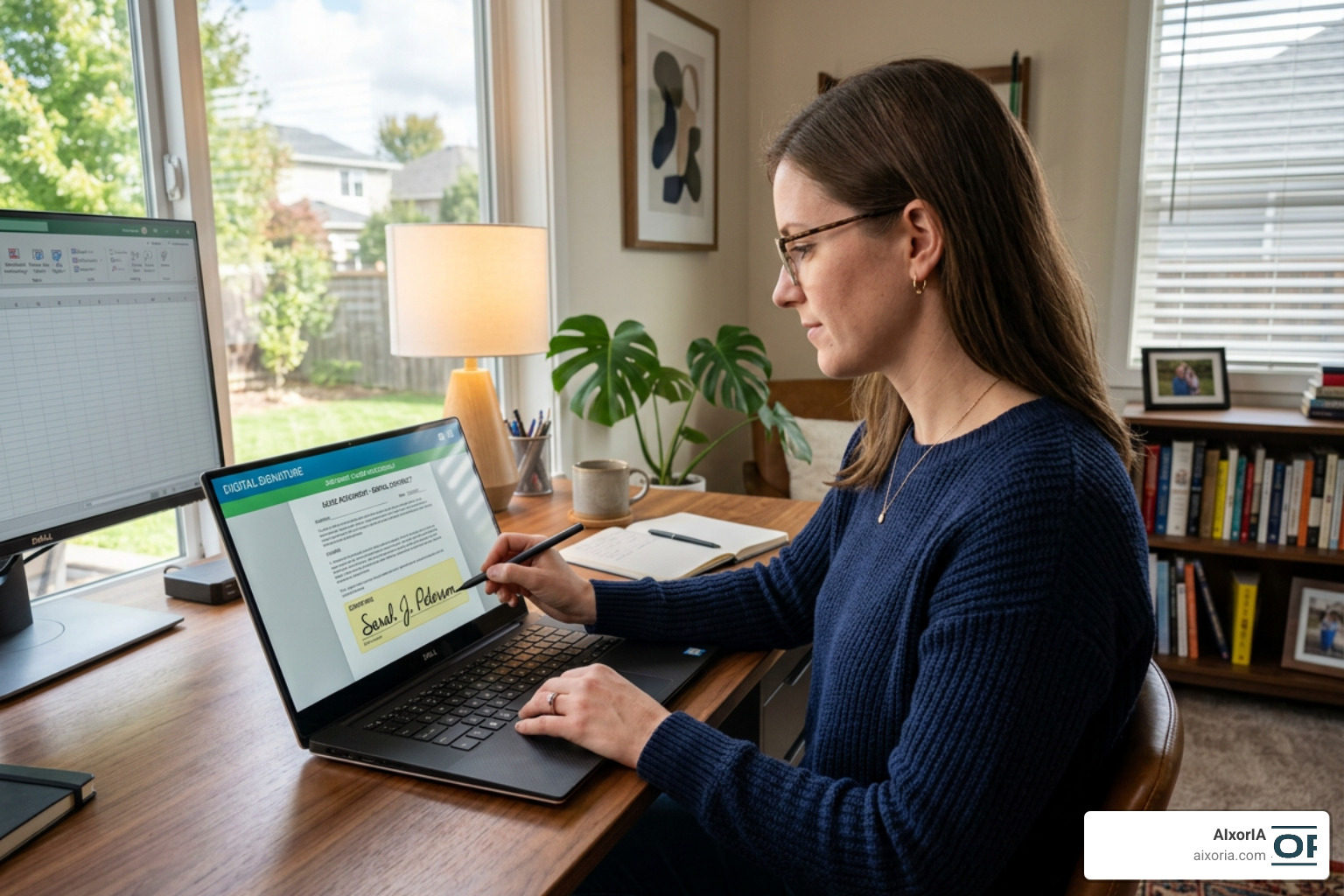
Think about how much time your team spends printing, signing, scanning, and emailing documents back and forth. It adds up fast.
The good news: that entire process can be replaced by a few clicks.
Electronic signatures are now legally binding in most countries — including across the EU and US — under laws like eIDAS, ESIGN, and UETA. And 84% of signers say they’re more likely to keep doing business with a company that uses a digital signing tool.
For small business owners especially, the switch isn’t just about convenience. It’s about cutting costs, closing deals faster, and looking professional — without needing an IT department to set it up.
This guide walks you through everything you need to know: how these apps work, what to look for, and which one fits your needs in 2026.
What is a Digital Signature App for Windows?
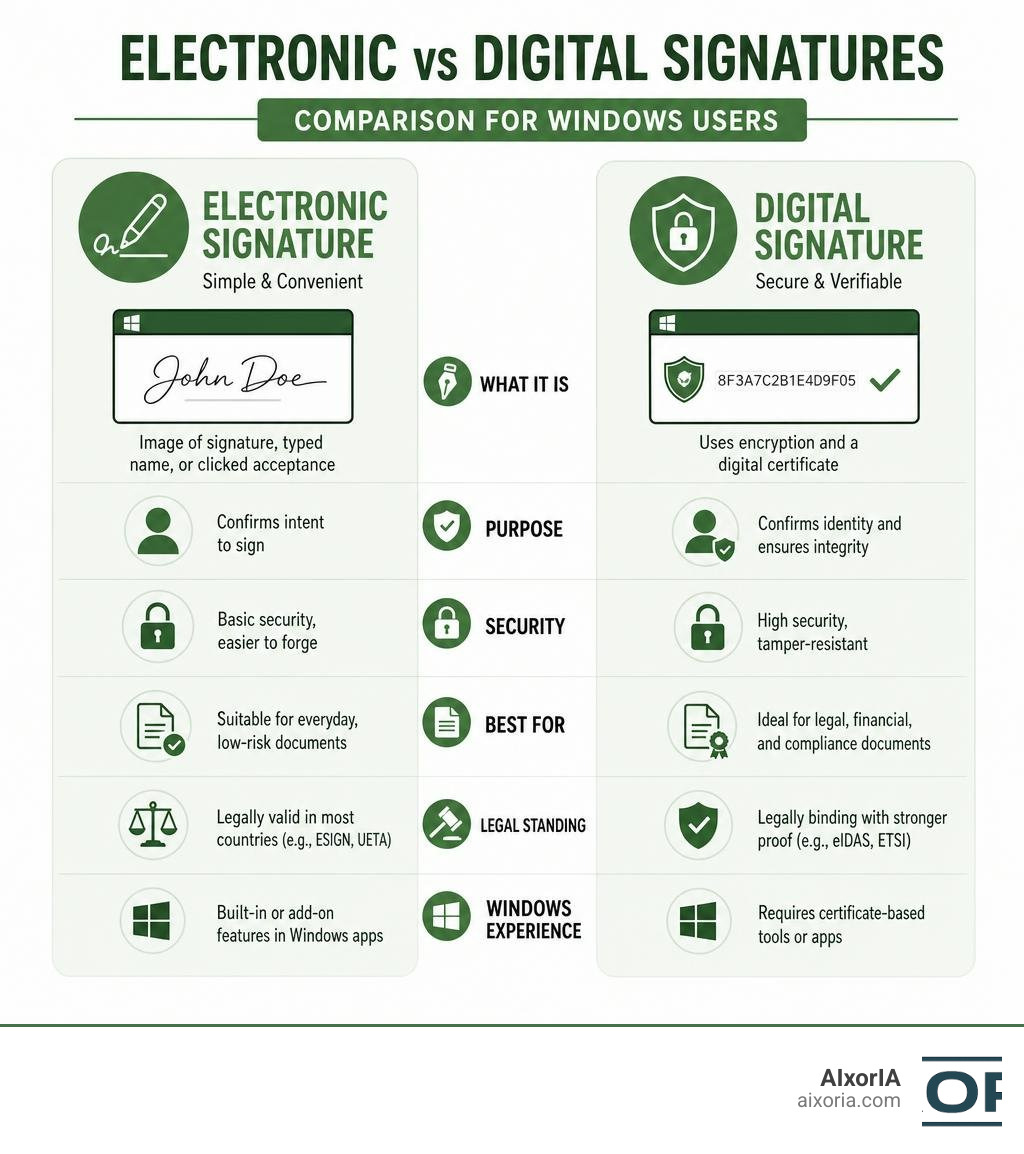
To understand how a digital signature app for Windows works, we first need to clear up a common point of confusion. Many people use the terms “electronic signature” and “digital signature” interchangeably, but they are actually quite different.
An electronic signature is simply an image of your signature placed on a document, or even a typed name at the bottom of an email. While convenient, it is relatively easy to forge.
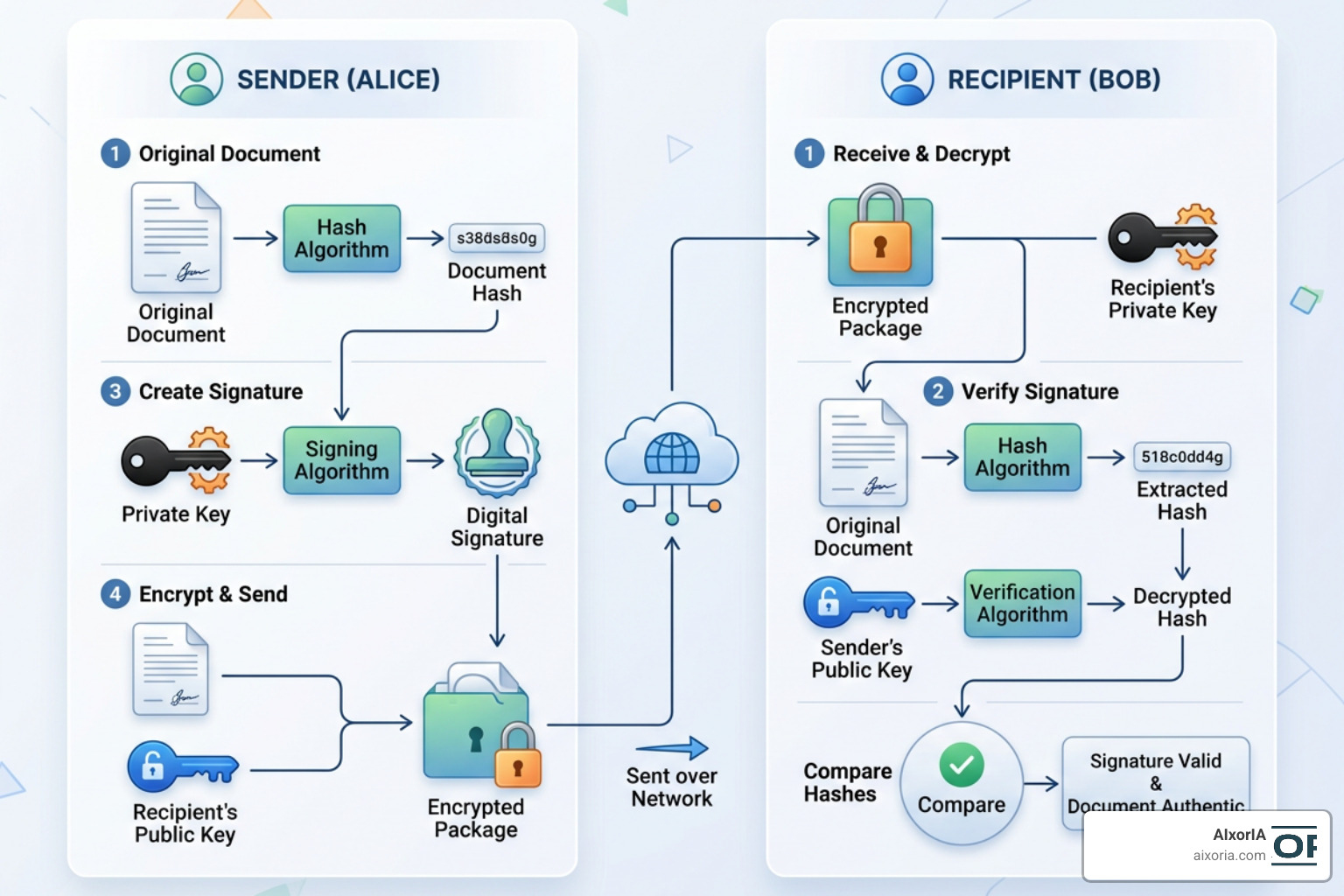
A digital signature is much more secure. It uses Public Key Infrastructure (PKI) technology to bind a cryptographic key pair to the document. When you sign a document using a digital signature app, the software uses your private key to create a unique cryptographic hash of the document. This hash functions like a digital fingerprint.
If anyone tries to alter the document after it has been signed, the public key (which is accessible to the recipient) will detect that the hash does not match, immediately invalidating the signature.
By using advanced hash algorithms like SHA-256, these apps guarantee two critical legal concepts:
- Document Integrity: Proof that the file has not been altered since it was signed.
- Non-Repudiation: Proof of the signer’s identity, meaning they cannot later deny signing the document.
Key Features and Security Compliance in 2026
When evaluating a digital signature app for Windows, look beyond basic visual signatures. In 2026, robust security protocols are standard. The best desktop applications offer features like:
- Comprehensive Audit Trails: Detailed logs capturing exactly when a document was opened, viewed, and signed, including IP addresses.
- Military-Grade Encryption: Protecting your files with 256-bit SSL encryption both during transit and while at rest.
- Cryptographic Timestamping: Verifying the exact date and time of the signature via an independent time source.
- Long-Term Validation (LTV): Ensuring the signature remains legally verifiable years into the future, even if the original certificate has expired.
Legal Standards Met by a Digital Signature App for Windows
To stand up in a court of law, your signed documents must adhere to specific regional frameworks. In the United States, the ESIGN Act and the Uniform Electronic Transactions Act (UETA) establish that electronic signatures carry the same legal weight as traditional ink. In Europe, the eIDAS regulation governs electronic transactions.
Under eIDAS, there are different levels of signatures, culminating in the Qualified Electronic Signature (QES), which requires a certificate issued by an accredited Trust Service Provider. To meet these rigorous European standards, tools like PDF Signer use specialized PAdES (PDF Advanced Electronic Signatures) profiles. This ensures your high-stakes corporate documents are fully compliant and legally recognized across all EU member states.
How to Choose and Use Your Signing Software
Selecting the right tool depends entirely on your specific workflow. If you are looking for a personal solution, built-in options like Adobe Acrobat Reader or the free tier of Fill might be all you need.
For enterprise deployment, your priorities will shift toward workflow automation, bulk template creation, and batch signing. If your team sends out dozens of standardized contracts every week, template creation allows you to set up reusable fields once, cutting document turnaround times by almost half.
Step-by-Step Guide to Using a Digital Signature App for Windows
Signing a PDF on Windows is incredibly straightforward. Here is how the typical process works:
- Upload the Document: Open your digital signature application and drag and drop your PDF or Word document into the interface.
- Set Up the Signers: Enter the email addresses of the people who need to sign, or select “I want to sign” if you are the sole signer.
- Place Signature Fields: Drag and drop signature blocks, date stamps, and text boxes onto the document pages.
- Install and Apply Your Certificate: If you are using a secure hardware token or smart card, make sure your middleware is running. For instance, you can complete your ArkSigner middleware setup to let your system communicate directly with your physical smart card.
- Sign and Verify: Enter your PIN or password, apply the cryptographic signature, and download the verified file. You can then use the built-in verification panel to inspect the certificate chain.
Hardware Integration with YubiKey and USB Tokens
For maximum security, many corporate and government organizations use hardware-based signing. Instead of storing your private signing keys on a vulnerable hard drive, you store them on a physical Hardware Security Module (HSM), a USB token, or a smart card.
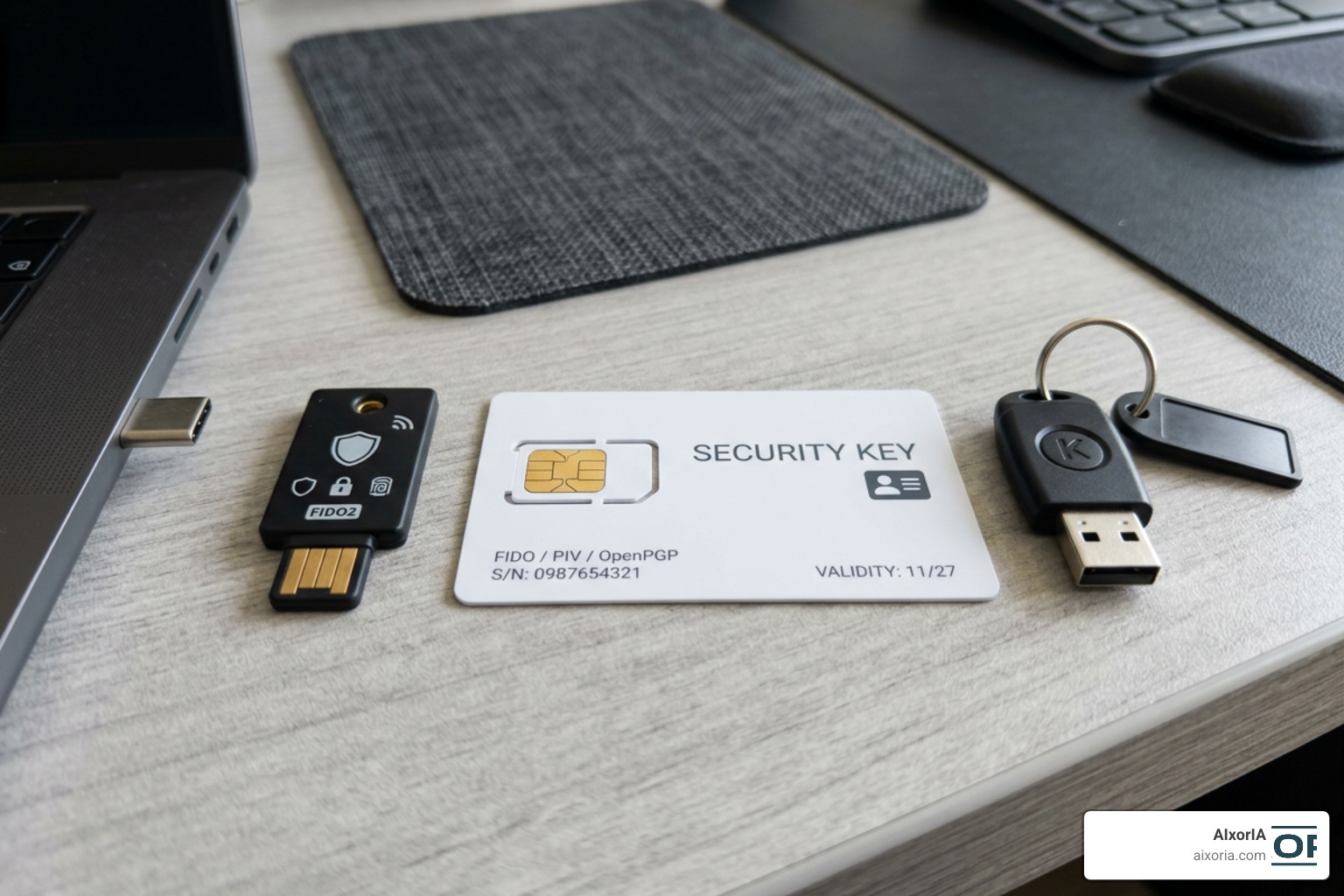
These physical devices use PKCS#11 or PKCS#12 standards to perform cryptographic signing directly on the hardware.
- If you prefer open-source utility tools, you can use yubisigner to sign and verify files using a physical YubiKey.
- If you are a software developer looking to sign Windows executables and binaries to prevent Windows Defender warnings, tools like electron-windows-sign allow you to integrate EV (Extended Validation) certificates and cloud HSM providers directly into your deployment pipelines.
Local-First vs. Cloud-Based Document Signing
Most popular e-signature tools on the market are cloud-based SaaS products. While convenient, cloud systems require you to upload your sensitive files to external servers. For government agencies, legal firms, and highly regulated industries, this is a major data privacy concern.
The alternative is a local-first approach. With local-first software, the document preparation and signing happen entirely on your offline Windows machine.
For example, XignAll is a desktop application that processes everything locally. It supports high-volume batch signing of entire folders without ever uploading your documents to the cloud. This makes it perfect for air-gapped systems with no internet access.
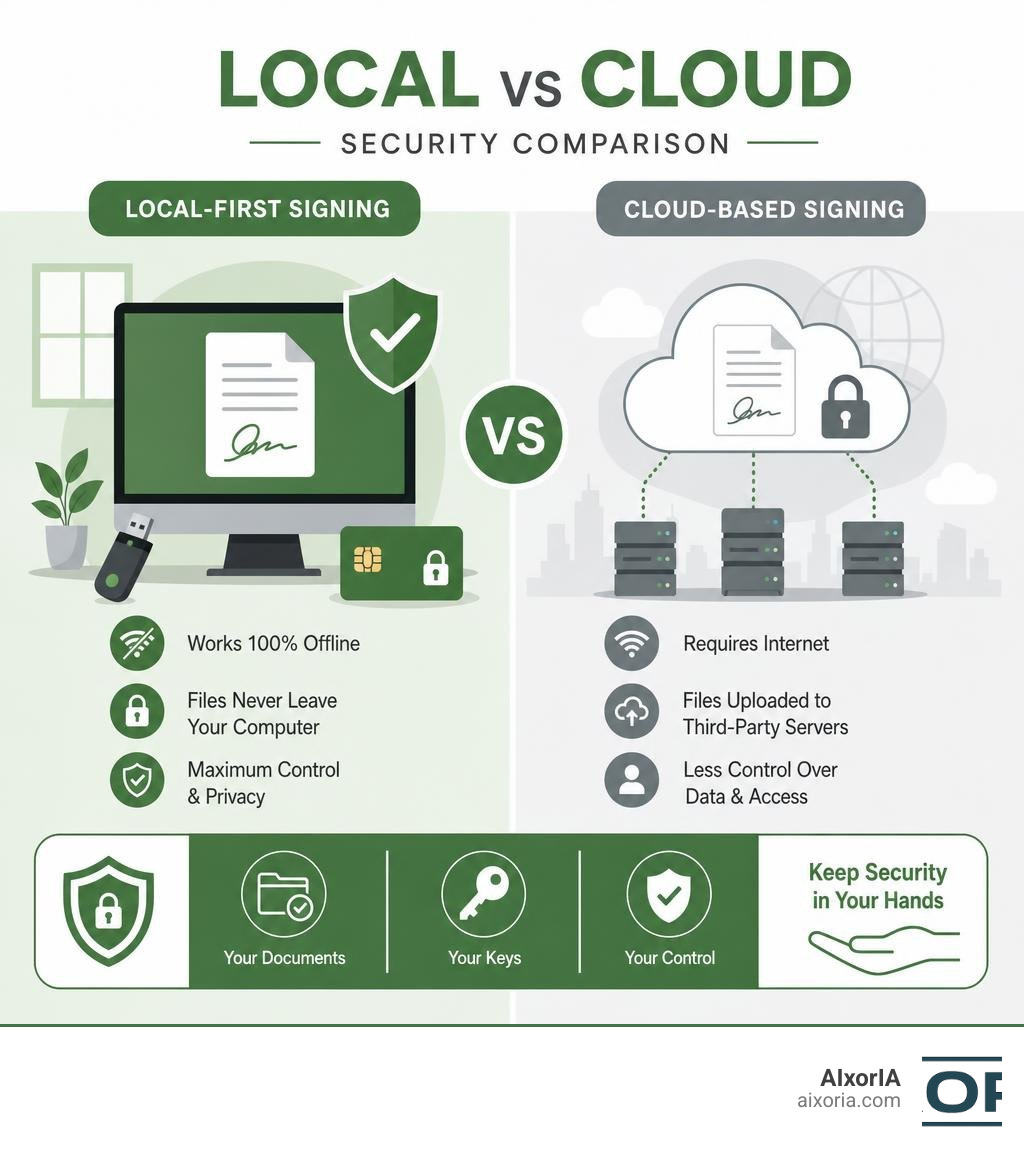
| Feature | Local-First Signing (e.g., XignAll) | Cloud-Based Signing (e.g., Docusign) |
|---|---|---|
| Internet Required | No (Works 100% offline) | Yes |
| Document Privacy | Files never leave your computer | Files uploaded to third-party servers |
| Pricing Model | Lifetime or annual flat fee | Monthly per-user subscription |
| Hardware Support | Direct PKCS#11 / USB Token integration | Limited / requires cloud connectors |
| Batch Signing | High-speed local folder processing | Processed queue-by-queue in the cloud |
Frequently Asked Questions about Windows Digital Signatures
What is the difference between an electronic signature and a digital signature?
An electronic signature is a visual mark (like a typed name or a drawn scribble) indicating intent to sign. A digital signature is a cryptographic proof that uses PKI technology to secure the document. Digital signatures prevent forgery and guarantee document integrity.
Can I sign documents offline on Windows?
Yes. If you use local-first software and have a local certificate file (.pfx or .p12) or a physical USB token, you can sign documents on completely offline or air-gapped Windows systems.
Do I need special hardware to use digital signatures?
No. You can sign documents using software-based certificates issued by trust authorities. However, if your industry requires Qualified Electronic Signatures (QES) or EV code signing, you will need a secure hardware key like a YubiKey or a USB smart card token.
Conclusion
Transitioning to a paperless workflow is one of the easiest ways to boost your business’s efficiency. Whether you need a simple cloud tool for occasional contracts or a robust, local-first application for secure batch signing, there is a digital signature app for Windows tailored to your needs.
Ready to optimize your business workflows and leverage modern digital tools? We can help you navigate the digital transition. Boost your workflow with AIxorIA productivity solutions to learn how we empower teams with custom tool training, performance audits, and automation strategies.
1 thought on “Best Digital Signature App for Windows in 2026: Top Tools for Small Businesses”